# BEVM Use Guide

**TokenPocket** [**Chrome Extension**](https://extension.tokenpocket.pro/#/) **and** [**Mobile Wallet**](https://www.tokenpocket.pro/en/download/app) **support BEVM Network.**

## **Mobile Wallet Use Guide** <a href="#how-to-create-an-etc-wallet-in-tokenpocket" id="how-to-create-an-etc-wallet-in-tokenpocket"></a>

### <mark style="color:orange;">**How to create a BEVM wallet in TokenPocket?**</mark> <a href="#how-to-create-an-etc-wallet-in-tokenpocket" id="how-to-create-an-etc-wallet-in-tokenpocket"></a>

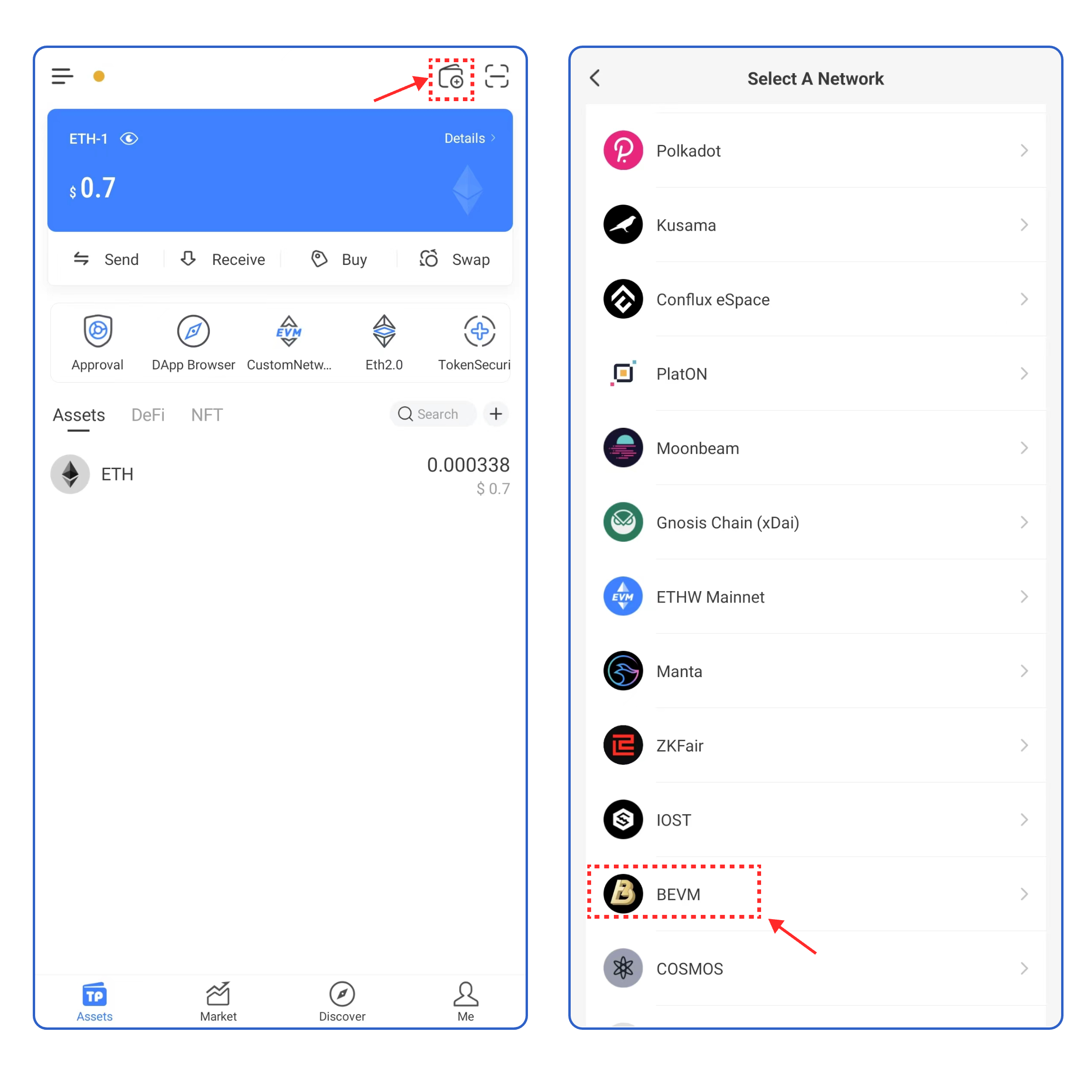
1. Open TokenPocket APP, click ![](https://2634619309-files.gitbook.io/~/files/v0/b/gitbook-x-prod.appspot.com/o/spaces%2F3qtItoZih7cEdFc6kPNk%2Fuploads%2FbUcpOhhAVoq8Fz9Nt1bF%2Fimage.png?alt=media\&token=a4f3434a-5d69-4fab-9c10-5cfeedb55275) on the upper right corner, and select **BEVM**;

<figure><img src="https://2634619309-files.gitbook.io/~/files/v0/b/gitbook-x-prod.appspot.com/o/spaces%2F3qtItoZih7cEdFc6kPNk%2Fuploads%2FIwVO5Sl35Wkt6iDpLL1z%2Fimage.png?alt=media&#x26;token=1728b728-37e6-456e-85aa-c470ad7d4265" alt=""><figcaption></figcaption></figure>

2\. Click **\[Create Wallet]**  and click **\[Create Wallet]** again;

<figure><img src="https://2634619309-files.gitbook.io/~/files/v0/b/gitbook-x-prod.appspot.com/o/spaces%2F3qtItoZih7cEdFc6kPNk%2Fuploads%2FI9Xz8oKiq8m8Ws6EnMRY%2Fimage.png?alt=media&#x26;token=67d4afcc-cb0f-4e73-be0c-7f0304372dd9" alt=""><figcaption></figcaption></figure>

3\. Set the wallet name and password, click the User Agreement, and click **\[Create Wallet].** Watch and learn the video content, click **\[Understood].**

<figure><img src="https://2634619309-files.gitbook.io/~/files/v0/b/gitbook-x-prod.appspot.com/o/spaces%2F3qtItoZih7cEdFc6kPNk%2Fuploads%2Fv7CEI4lLJjI0JKGOS18I%2Fimage.png?alt=media&#x26;token=b2f130ae-2796-42b7-8073-96d402aae31b" alt=""><figcaption></figcaption></figure>

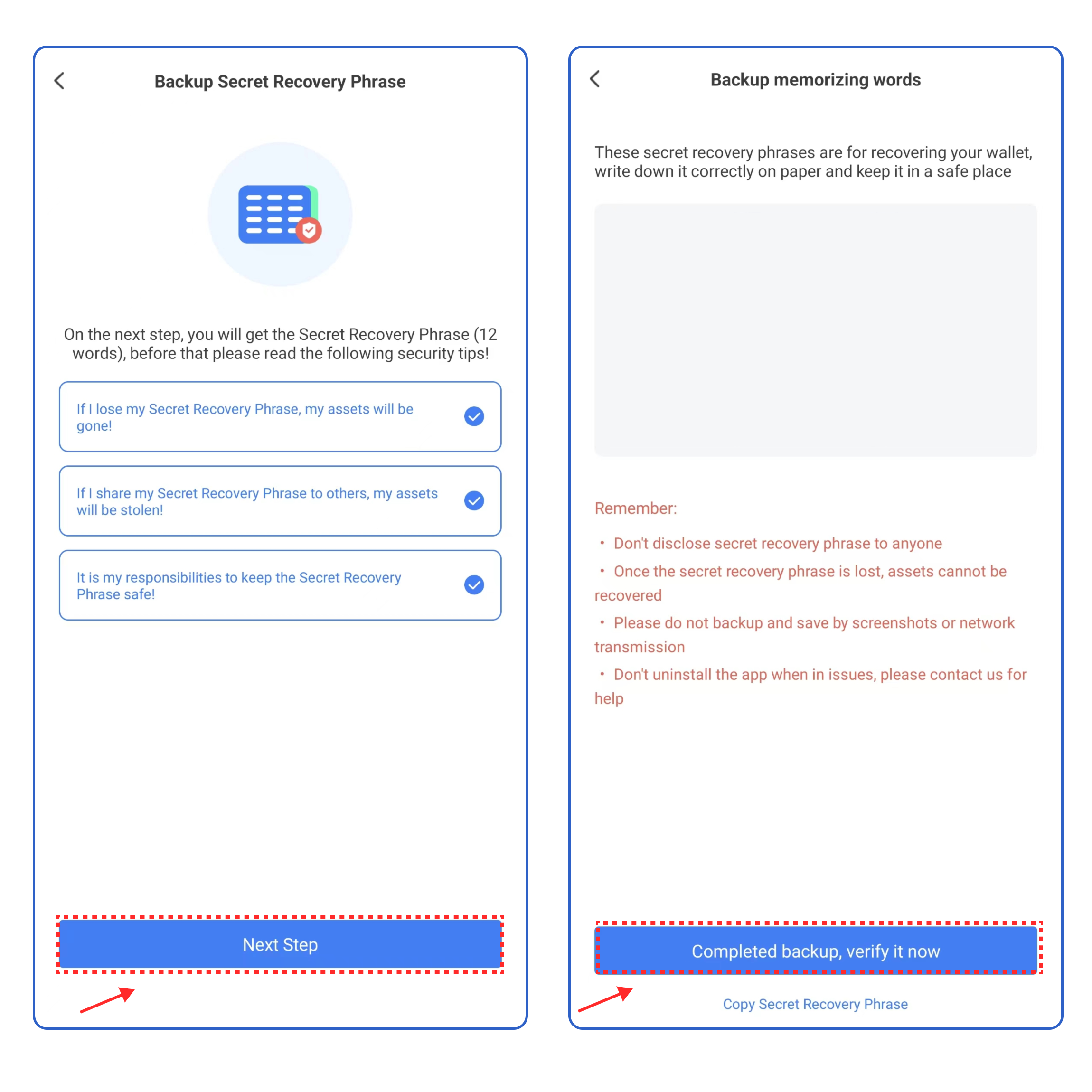
4\.  Select the security tips, and click **\[Next Step]**. Back up the secret recovery phrase on the paper or on the [**KeyPal**](https://www.keypal.pro/en/), and store it in a safe place. Click **\[Completed backup, verify now]** .

<figure><img src="https://2634619309-files.gitbook.io/~/files/v0/b/gitbook-x-prod.appspot.com/o/spaces%2F3qtItoZih7cEdFc6kPNk%2Fuploads%2F7zkflR1KPDcqYKmhOk4T%2Fimage.png?alt=media&#x26;token=739e3284-471f-45f0-b699-6fd58d914454" alt=""><figcaption></figcaption></figure>

5\. Enter your secret recovery phrase, and click **\[Confirm].** At this point, you have successfully created a **BEVM** wallet.

<mark style="color:red;">**Attention: Do not disclose the private key or secret recovery phrase to the third party!**</mark>

<figure><img src="https://2634619309-files.gitbook.io/~/files/v0/b/gitbook-x-prod.appspot.com/o/spaces%2F3qtItoZih7cEdFc6kPNk%2Fuploads%2FsgWs2Ht4Azwy1UpyJrrt%2Fimage.png?alt=media&#x26;token=8e39335b-5e38-4c76-9a9c-7261f76012a8" alt=""><figcaption></figcaption></figure>

### <mark style="color:orange;">**How to import a BEVM wallet into TokenPocket?**</mark> <a href="#how-to-import-an-etc-wallet-into-tokenpocket" id="how-to-import-an-etc-wallet-into-tokenpocket"></a>

1. Open TokenPocket APP, click ![](https://2634619309-files.gitbook.io/~/files/v0/b/gitbook-x-prod.appspot.com/o/spaces%2F3qtItoZih7cEdFc6kPNk%2Fuploads%2FYTfIwOa9l3y1wzHZs4gu%2Fimage.png?alt=media\&token=cc906325-6e26-4529-b8a4-842900309233) on the upper right corner, and select **BEVM;**

<figure><img src="https://2634619309-files.gitbook.io/~/files/v0/b/gitbook-x-prod.appspot.com/o/spaces%2F3qtItoZih7cEdFc6kPNk%2Fuploads%2FOTzXvhjtz4ZDTmGteLn5%2Fimage.png?alt=media&#x26;token=a3115a52-7906-4b7d-bd50-c3bdcce1fc03" alt=""><figcaption></figcaption></figure>

2\. Click **\[Import Wallet]**, and select the way you want to import your wallet.

<figure><img src="https://2634619309-files.gitbook.io/~/files/v0/b/gitbook-x-prod.appspot.com/o/spaces%2F3qtItoZih7cEdFc6kPNk%2Fuploads%2FSsrd4rTpZ0vTPoGAsiE5%2Fimage.png?alt=media&#x26;token=e27808bd-87a1-4d8a-a388-d3d6d78829c5" alt=""><figcaption></figcaption></figure>

3\. Take **\[Recovery Phrase import]** as an example, enter your secret recovery phrase, wallet name, and password, click the User Agreement, and click **\[Import Wallet]**. At this point, you have successfully imported a **BEVM** wallet.​​

<figure><img src="https://2634619309-files.gitbook.io/~/files/v0/b/gitbook-x-prod.appspot.com/o/spaces%2F3qtItoZih7cEdFc6kPNk%2Fuploads%2FCHn3DXxKcAUzIhbfYLmI%2Fimage.png?alt=media&#x26;token=92212bb4-7377-454e-abe0-ecd70d625e72" alt=""><figcaption></figcaption></figure>

### <mark style="color:orange;">**How to sync a BEVM wallet on TokenPocket?**</mark> <a href="#how-to-import-an-etc-wallet-into-tokenpocket" id="how-to-import-an-etc-wallet-into-tokenpocket"></a>

1. Open TokenPocket APP, click ![](https://2634619309-files.gitbook.io/~/files/v0/b/gitbook-x-prod.appspot.com/o/spaces%2F3qtItoZih7cEdFc6kPNk%2Fuploads%2FAtQnQjgqcGMmf7xkgHJu%2Fimage.png?alt=media\&token=e9be7083-6a30-4964-a0e7-993d11bcd429) on the upper right corner, and select **BEVM;**

<figure><img src="https://2634619309-files.gitbook.io/~/files/v0/b/gitbook-x-prod.appspot.com/o/spaces%2F3qtItoZih7cEdFc6kPNk%2Fuploads%2FzI7tI0Po9E6sNxw04QK0%2Fimage.png?alt=media&#x26;token=e46ad105-9ec0-4320-ae7c-d2c8d827fc1c" alt=""><figcaption></figcaption></figure>

2. Clic&#x6B;**【Create Wallet】**, clic&#x6B;**【One-Step Sync】.**

<figure><img src="https://2634619309-files.gitbook.io/~/files/v0/b/gitbook-x-prod.appspot.com/o/spaces%2F3qtItoZih7cEdFc6kPNk%2Fuploads%2FiAl6vZRj3O8ORfiVZ0QJ%2Fimage.png?alt=media&#x26;token=2391f88d-8e7e-4364-8df0-a19472fcde88" alt=""><figcaption></figcaption></figure>

3. Select the network you want to sync and clic&#x6B;**【Synchronize】**, you can view your wallet on **BEVM Network.**

<figure><img src="https://2634619309-files.gitbook.io/~/files/v0/b/gitbook-x-prod.appspot.com/o/spaces%2F3qtItoZih7cEdFc6kPNk%2Fuploads%2FVxD7zhLsL7orxhgJbqsM%2Fimage.png?alt=media&#x26;token=f9fdfdee-3c73-4673-807a-a95ed6ac6b9b" alt=""><figcaption></figcaption></figure>

## Chrome Extention Use Guide

1. Open TokenPocket Chrome Extension, and click the upper left corner to select the **BEVM Network.**

<figure><img src="https://2634619309-files.gitbook.io/~/files/v0/b/gitbook-x-prod.appspot.com/o/spaces%2F3qtItoZih7cEdFc6kPNk%2Fuploads%2FYcP3zGSrn14AttNCuK0o%2Fimage.png?alt=media&#x26;token=d0435d79-79d1-4366-ad79-8b13ef358cd7" alt=""><figcaption></figcaption></figure>

2. After you select, you can view your **BEVM** **Wallet** on the Assets page, click the upper right corner to access the management page, switch your wallet, and create/import your wallet on this page.
<figure><img src="https://2634619309-files.gitbook.io/~/files/v0/b/gitbook-x-prod.appspot.com/o/spaces%2F3qtItoZih7cEdFc6kPNk%2Fuploads%2FBOjbvpZmemIUnmHVWbEw%2Fimage.png?alt=media&#x26;token=ac8e7c55-707f-465d-8514-bd59da72adc0" alt=""><figcaption></figcaption></figure>