> For the complete documentation index, see [llms.txt](https://help.tpwallet.io/en/llms.txt). Markdown versions of documentation pages are available by appending `.md` to page URLs; this page is available as [Markdown](https://help.tpwallet.io/en/wallet-operation/how-to-create-a-wallet/how-to-create-and-import-sonic-wallet-on-tokenpocket.md).
# How to Create and Import Sonic Wallet on TokenPocket
Learn how to create and import Sonic wallets on TokenPocket, supporting Android and plugin wallets. Easily explore the Sonic network ecosystem.
**TokenPocket** [**Mobile Wallet**](https://www.tokenpocket.pro/en/download/app) **and** [**Chrome Extension**](https://extension.tokenpocket.pro/) **now support Sonic network.**
## **How to create a Sonic wallet in TokenPocket**
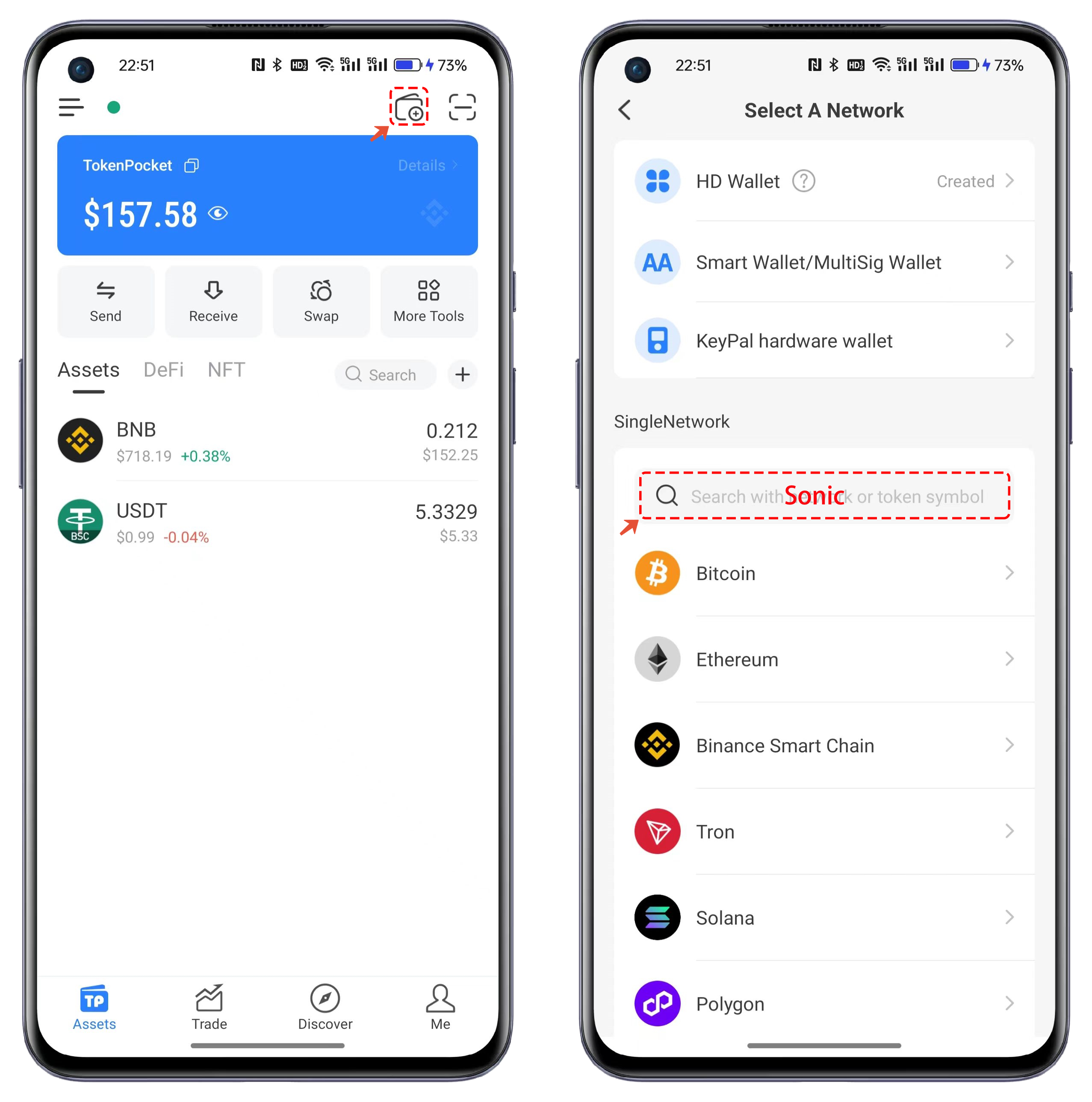
1. Open TokenPocket and click on the top-right corner to create a wallet. On the wallet network selection interface, search for the \[Sonic] network.
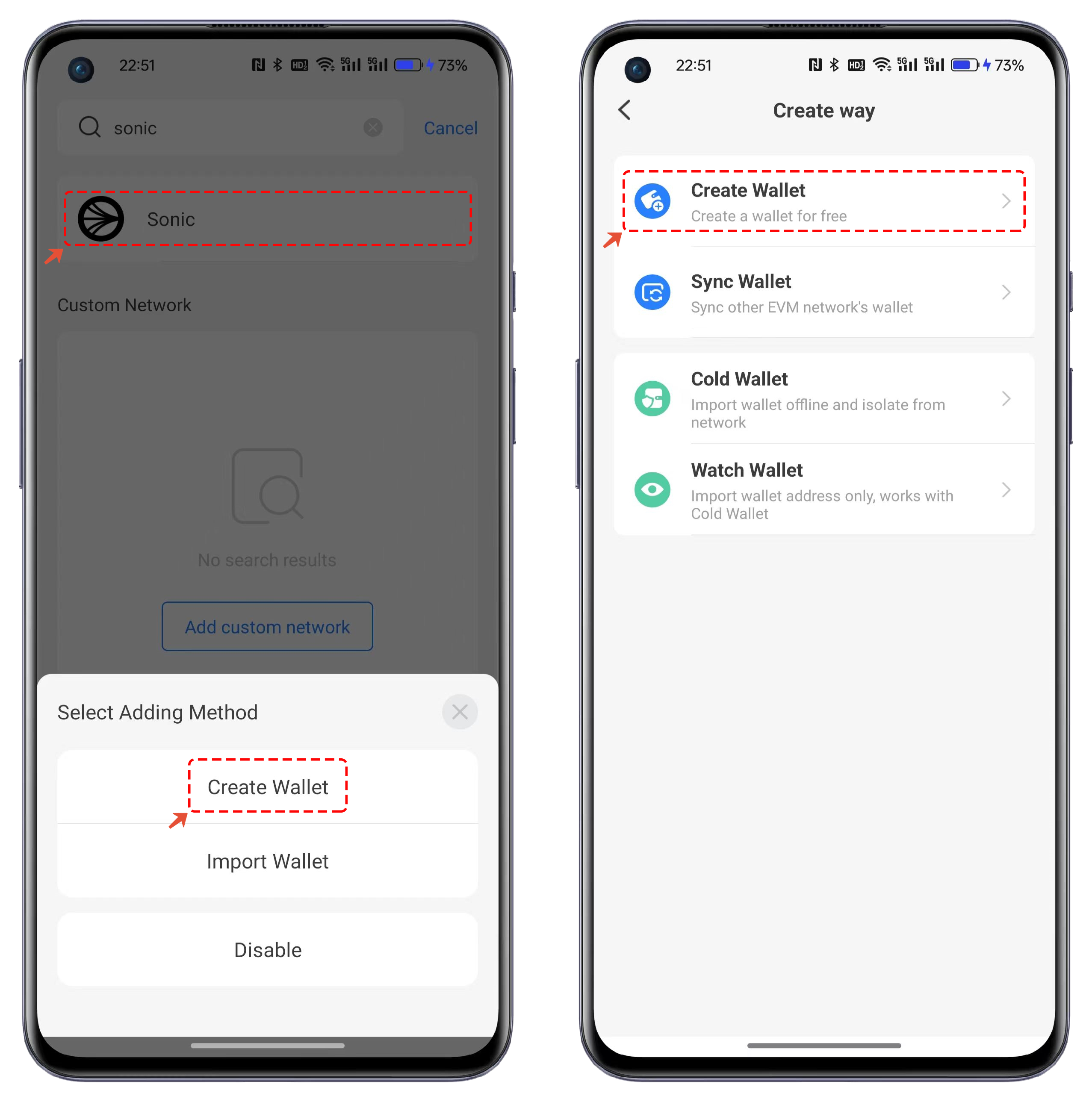
2. Click on the Sonic network, select \[Create Wallet] as the method, and choose \[Create Wallet] again under the creation options.
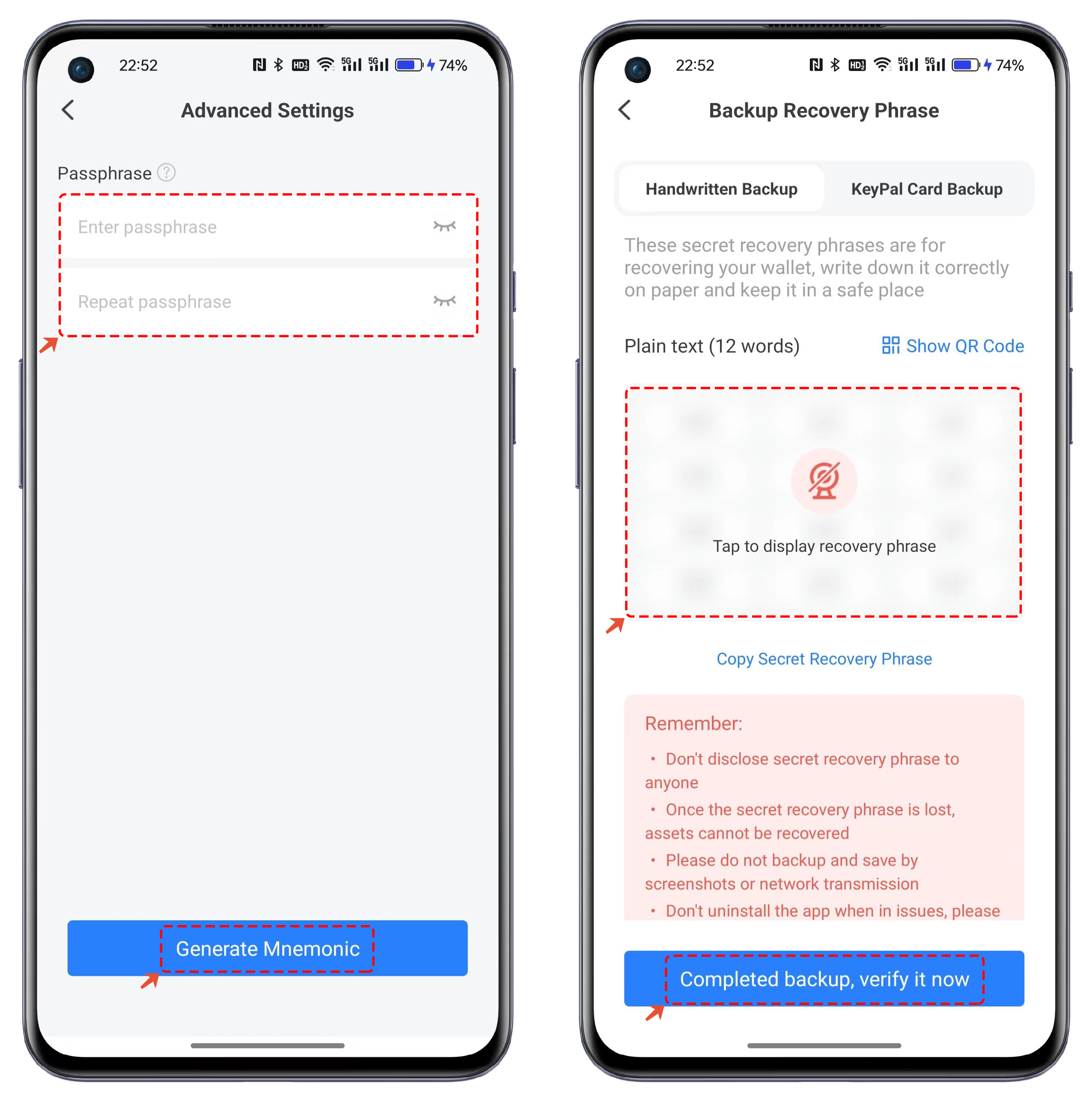
3. Set a password (the password is only valid for the local device), click \[Create Wallet], carefully read the options and check the boxes. It is highly recommended to click \[Advanced Settings] and set a Passphrase.
4. After setting the Passphrase, click \[Generate Mnemonic Phrase], then click \[Show Mnemonic Phrase] and back it up offline. Do not share your mnemonic phrase with anyone. Once the backup is complete, click \[Backup Complete, Proceed to Verification].
**PS:** A Passphrase is an important tool used to encrypt and protect the wallet. It is typically a string composed of words or phrases that is used to create the wallet's private key or seed phrase.
The purpose of a Passphrase is to enhance wallet security, ensuring that only those with the correct Passphrase can access and control the assets in the wallet. Without the correct Passphrase, the wallet cannot be recovered or restored, so it is crucial to keep the Passphrase safe.
5. After correctly entering the mnemonic phrase in the prompted order, click \[Confirm] to complete the Sonic wallet creation process.
## **How to import a Sonic wallet in TokenPocket?**
1. Open TokenPocket and click on the top-right corner to create a wallet. On the wallet network selection interface, search for the \[Sonic] network.
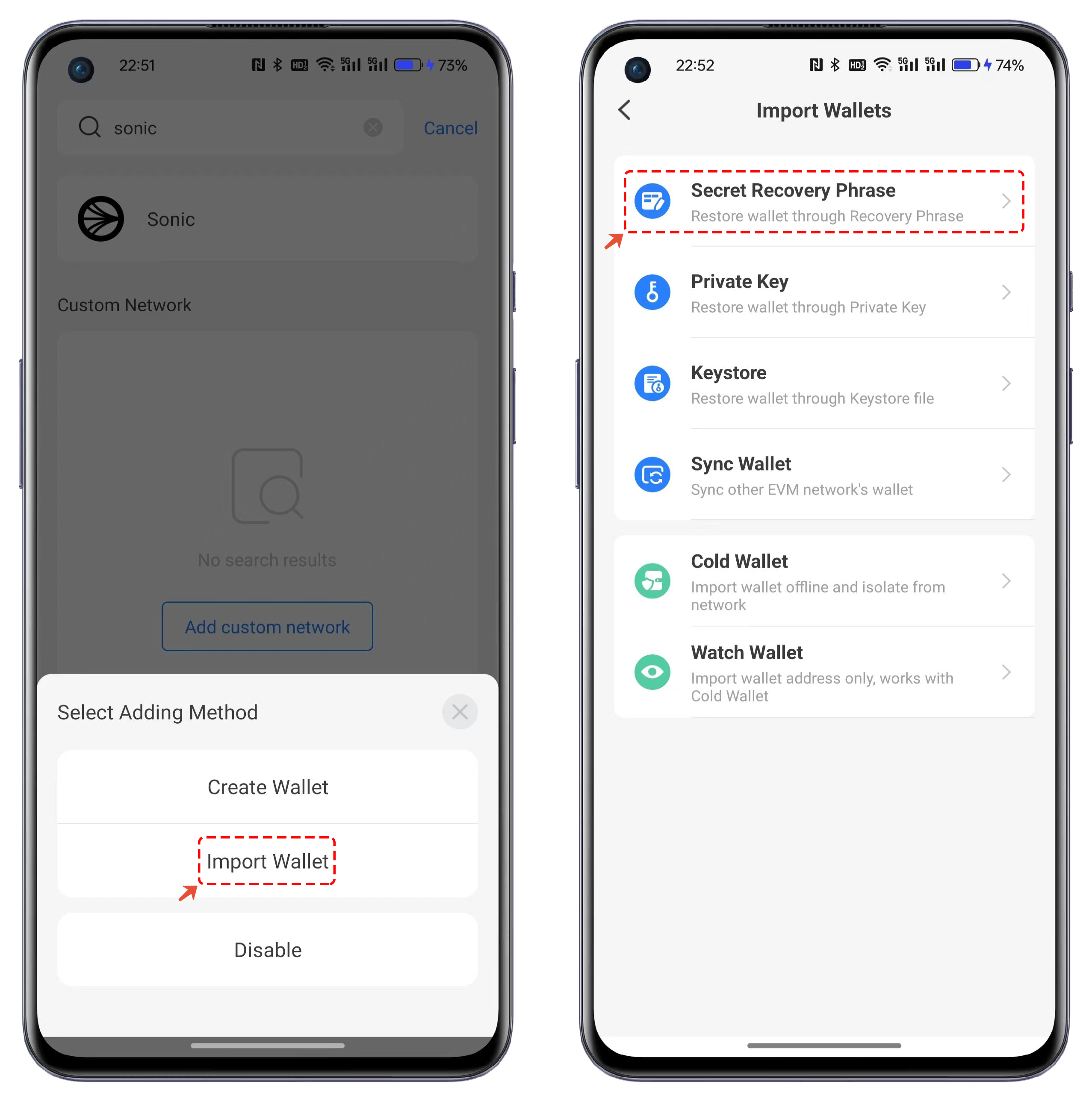
2. Click on the Sonic network, select \[Import Wallet] as the method, and choose \[Import via Mnemonic Phrase] under the import options.
3. Correctly input the mnemonic phrase into the designated field, ensuring each word is separated by a space. Set a password, then click \[Import Wallet] to complete the Sonic wallet import process.
## Extension Wallet Tutorial
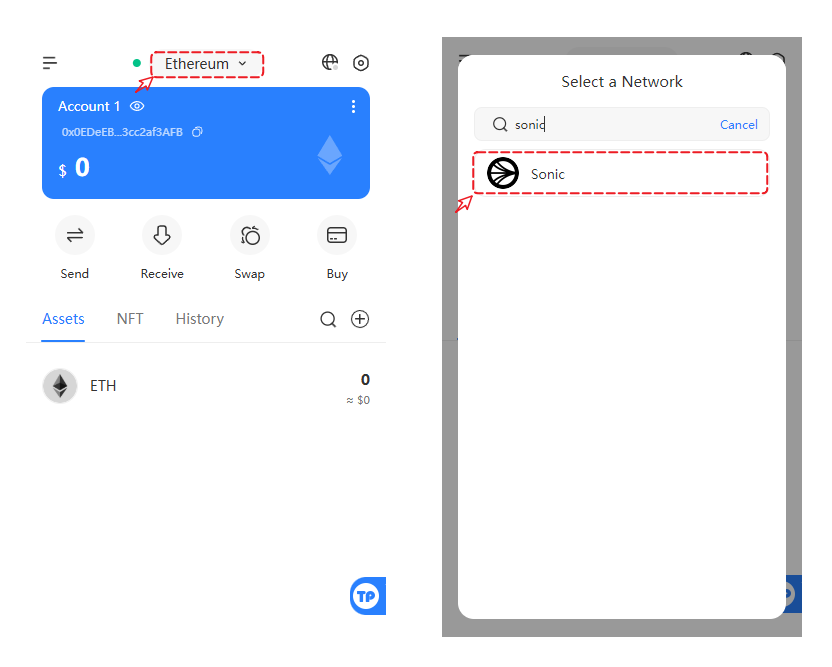
Click on the top to switch networks, find and select the Sonic network from the list, and the current wallet will automatically sync with the Sonic network.