# TP Card Binding with Alipay

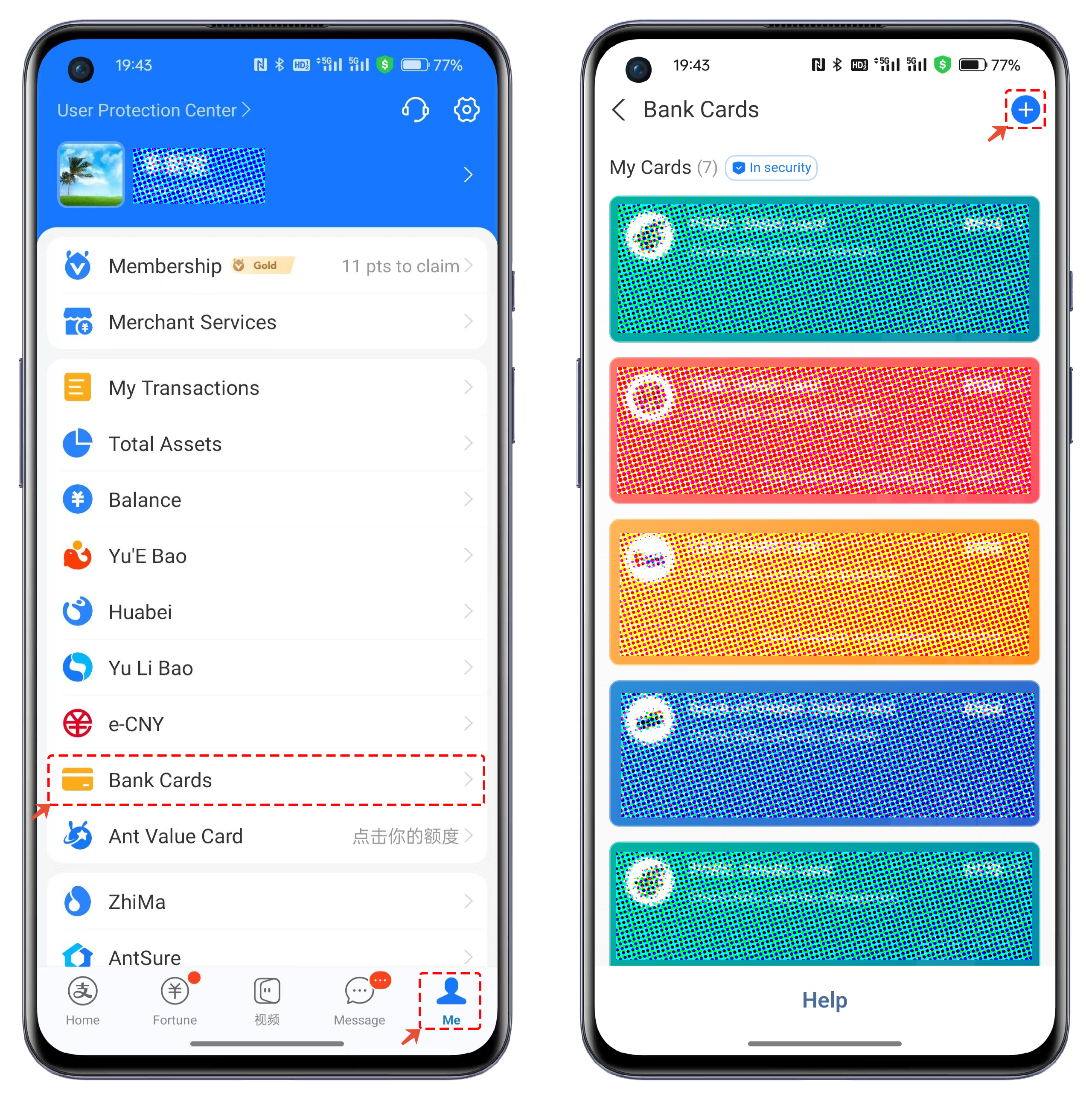
1. Open the Alipay app, click \[Me], then click \[Bank Cards]. On the Bank Cards screen, click the \[ + ] icon in the top right corner to add a bank card.

<figure><img src="https://files.gitbook.com/v0/b/gitbook-x-prod.appspot.com/o/spaces%2F-MMJyYRLFVRsMrfcXuRV%2Fuploads%2Fg9DPhhTxig9eejVEUyXN%2F1.png?alt=media&#x26;token=0a53682a-7967-4dee-84ed-dd0e54abb7a0" alt=""><figcaption></figcaption></figure>

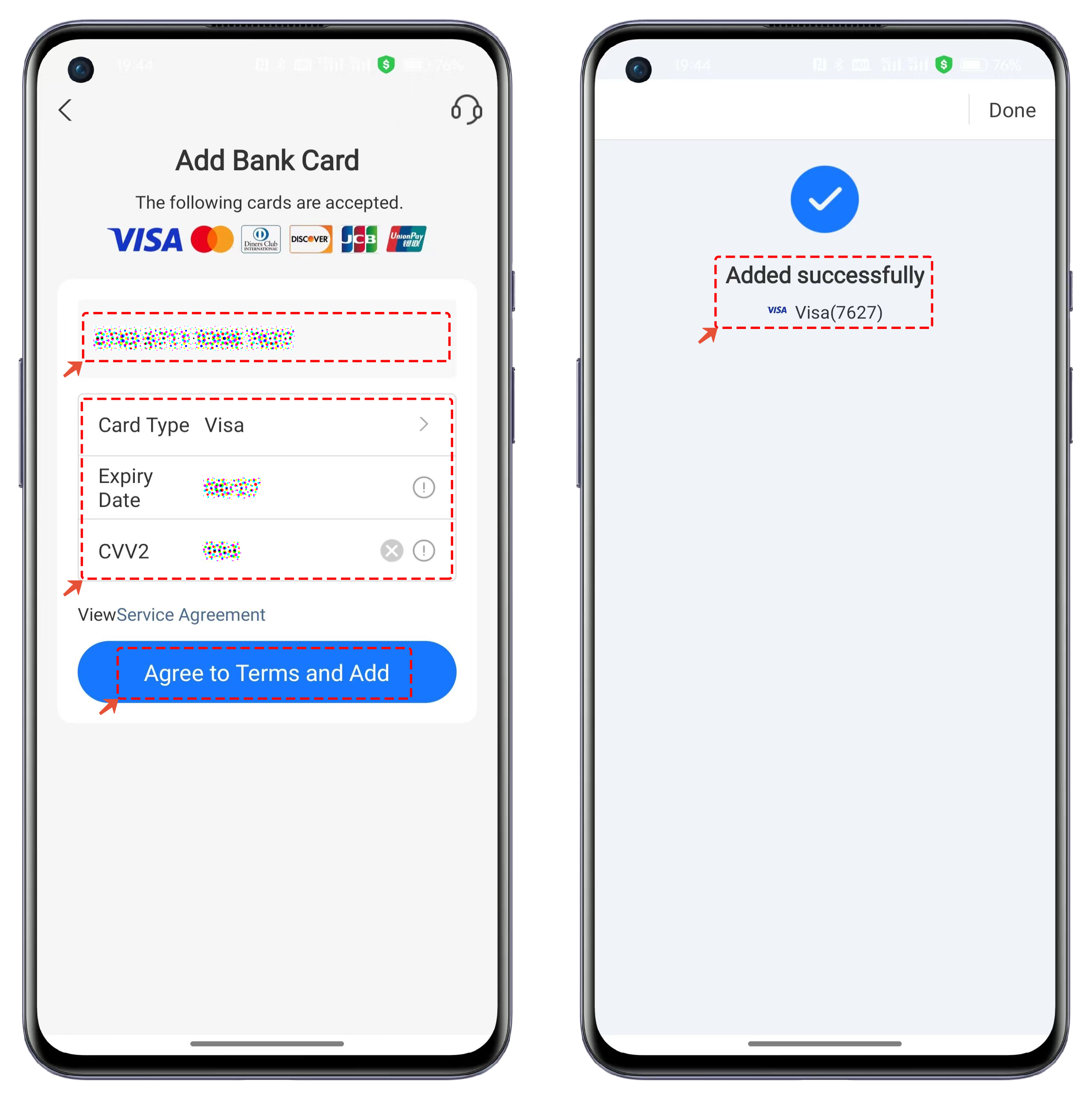
2. Enter the TP Card account number, expiration date, and CVV2 information, then click \[Agree to the Terms and Add]. Once the verification is successful, the card will be added successfully.
<figure><img src="https://files.gitbook.com/v0/b/gitbook-x-prod.appspot.com/o/spaces%2F-MMJyYRLFVRsMrfcXuRV%2Fuploads%2FmoJOwFGnw8MPgtaieKiP%2F2.png?alt=media&#x26;token=a25b7fe5-c4ec-41bb-ad7a-ddf5c9f7285a" alt=""><figcaption></figcaption></figure>


---

# Agent Instructions: Querying This Documentation

If you need additional information that is not directly available in this page, you can query the documentation dynamically by asking a question.

Perform an HTTP GET request on the current page URL with the `ask` query parameter:

```
GET https://help.tpwallet.io/en/wallet-operation/tp-card/alipay.md?ask=<question>
```

The question should be specific, self-contained, and written in natural language.
The response will contain a direct answer to the question and relevant excerpts and sources from the documentation.

Use this mechanism when the answer is not explicitly present in the current page, you need clarification or additional context, or you want to retrieve related documentation sections.
