> For the complete documentation index, see [llms.txt](https://help.tpwallet.io/en/llms.txt). Markdown versions of documentation pages are available by appending `.md` to page URLs; this page is available as [Markdown](https://help.tpwallet.io/en/wallet-operation/how-to-create-a-wallet/batch.md).
# TokenPocket Sub Wallets: Create & Import on BSC, TRON, iOS & Android
Learn how to create and import sub-wallets on TokenPocket, supporting BSC, TRON, HD wallets, and iOS/Android clients. This guide covers batch creation, private key import, and path import for easy ass
## Android client creation tutorial:
### Sub-wallet creation tutorial (Binance Smart Chain):
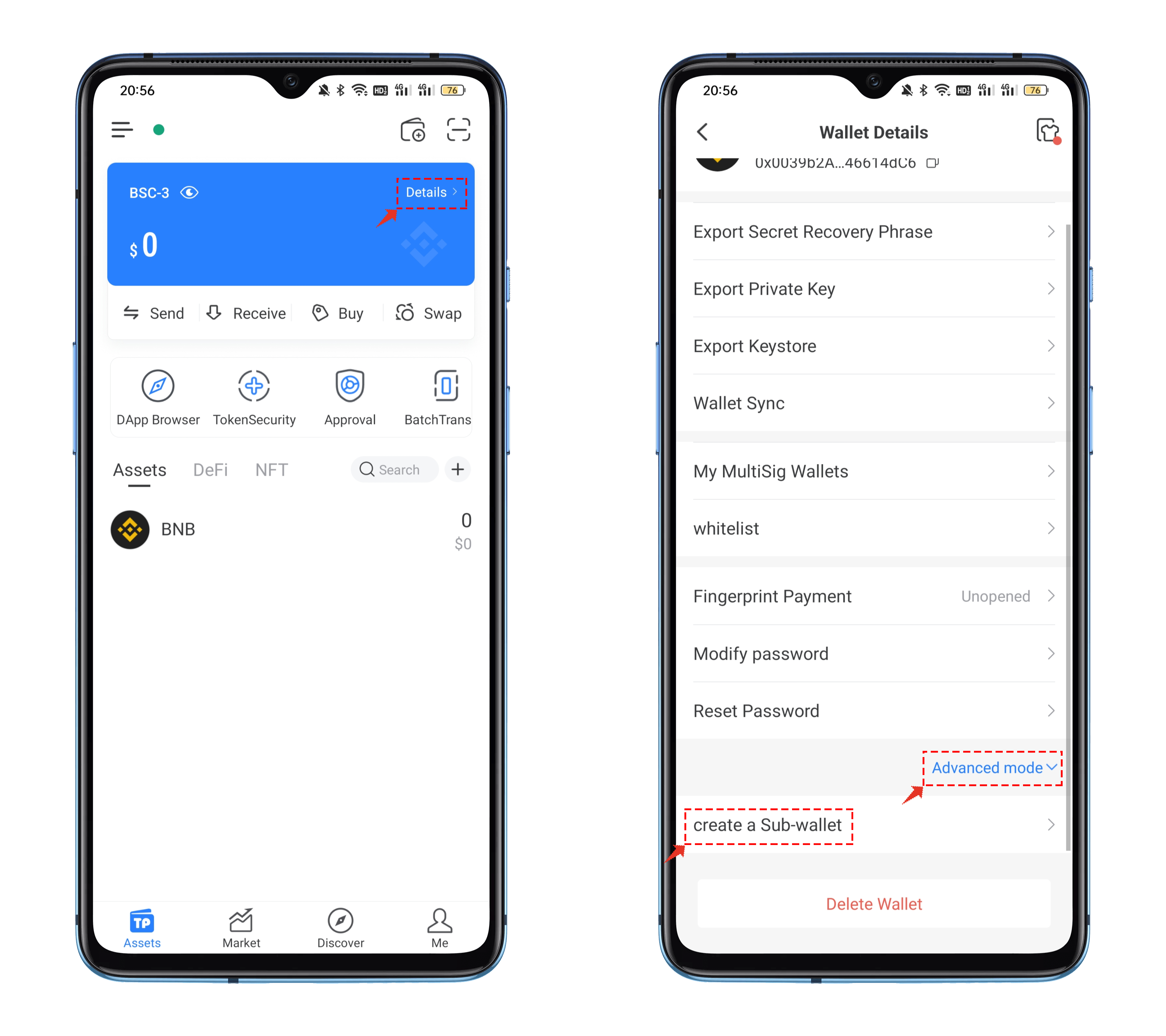
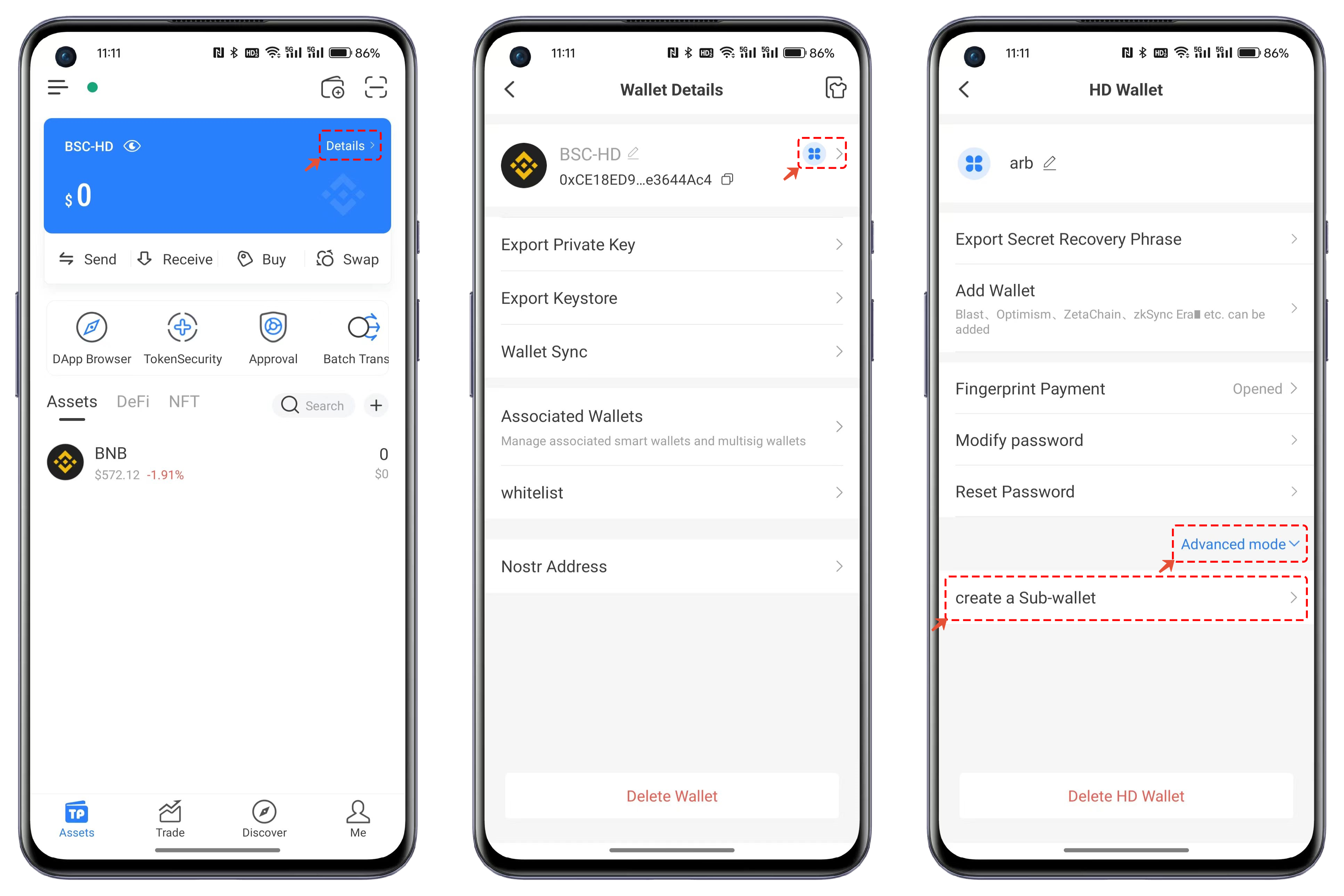
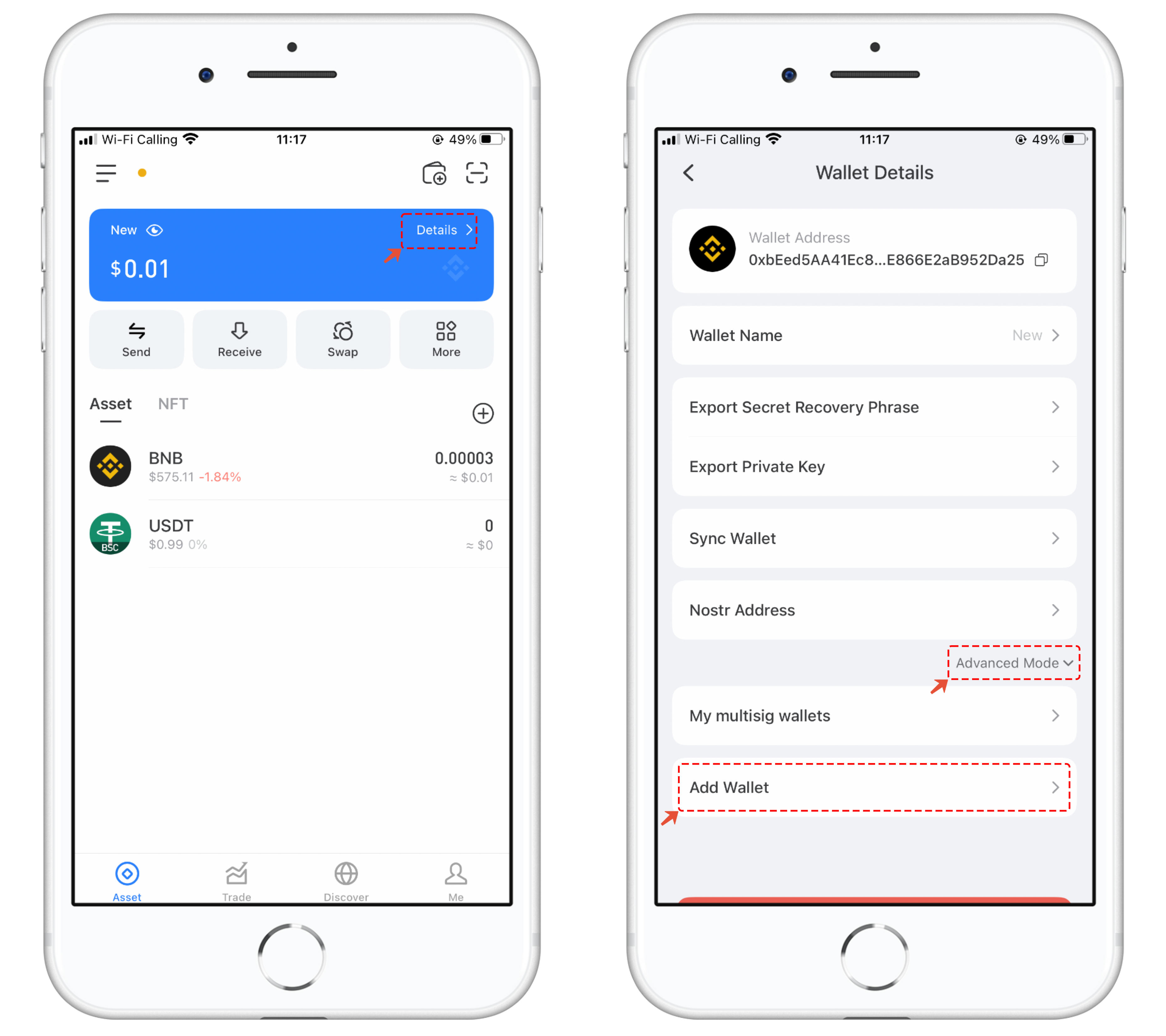
1. Open the BSC wallet in TokenPocket, click on the upper right corner of the blue card "Details," and on the wallet details page, click on "Advanced Mode" and select "Create Sub Wallet."
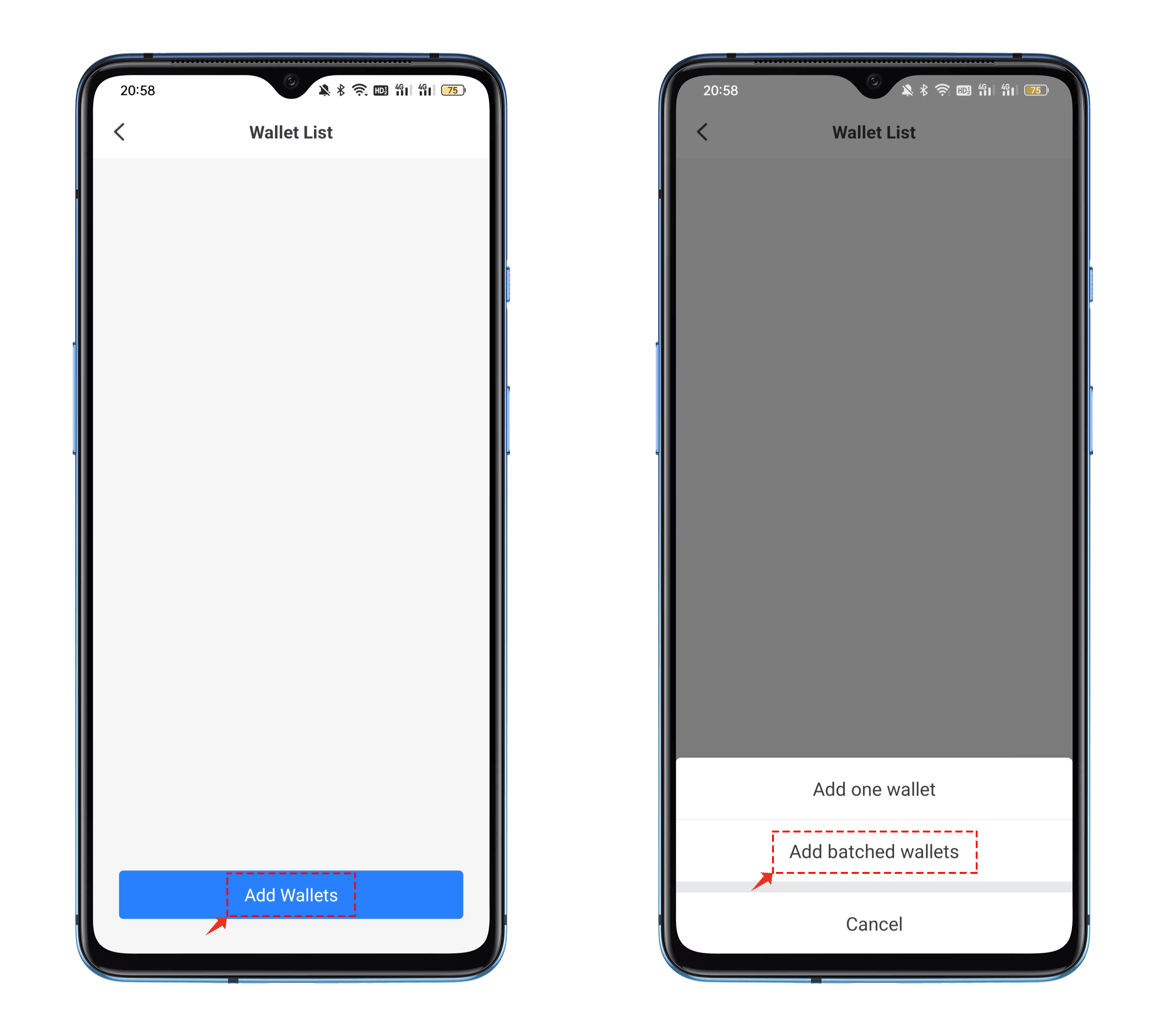
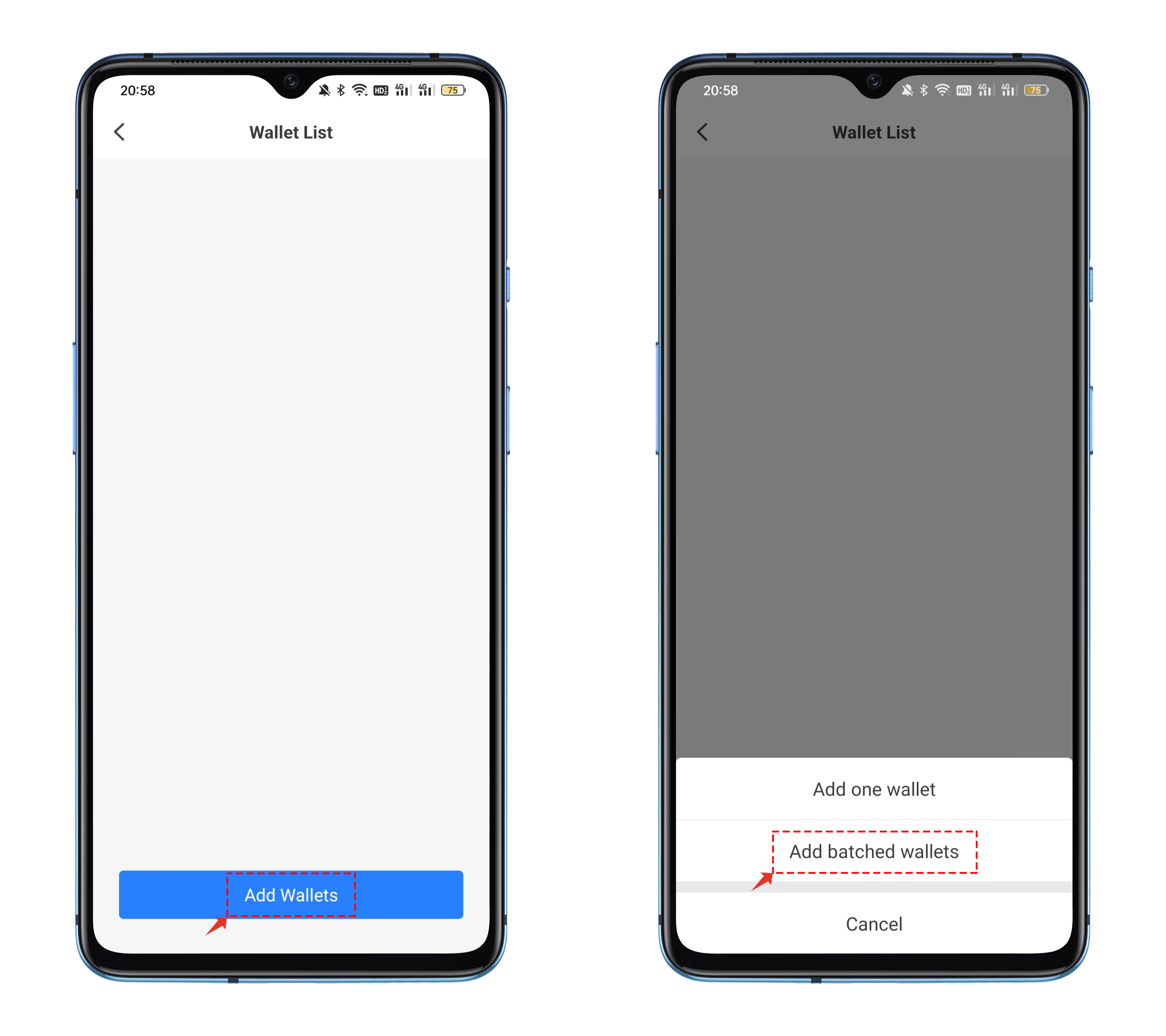
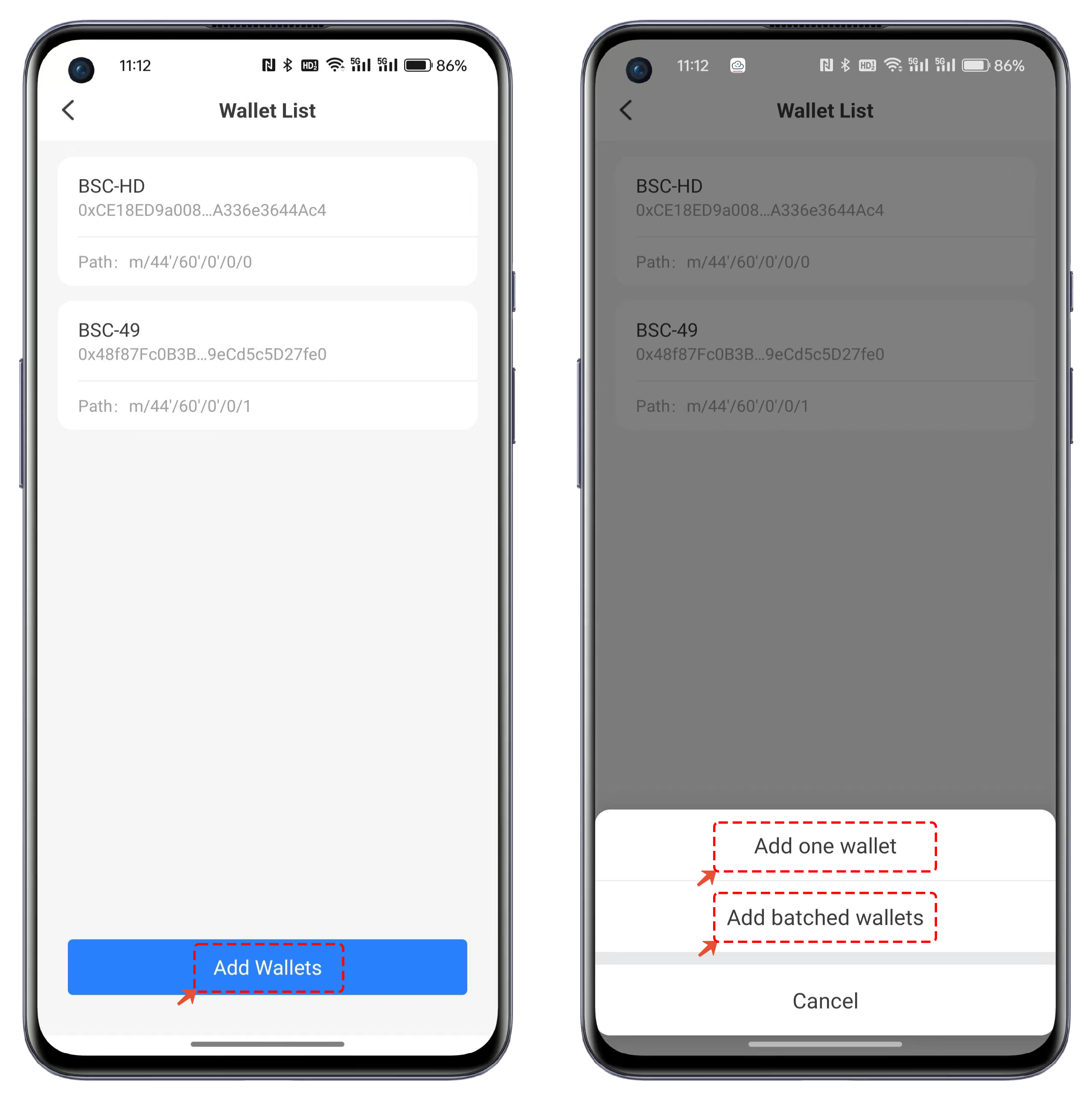
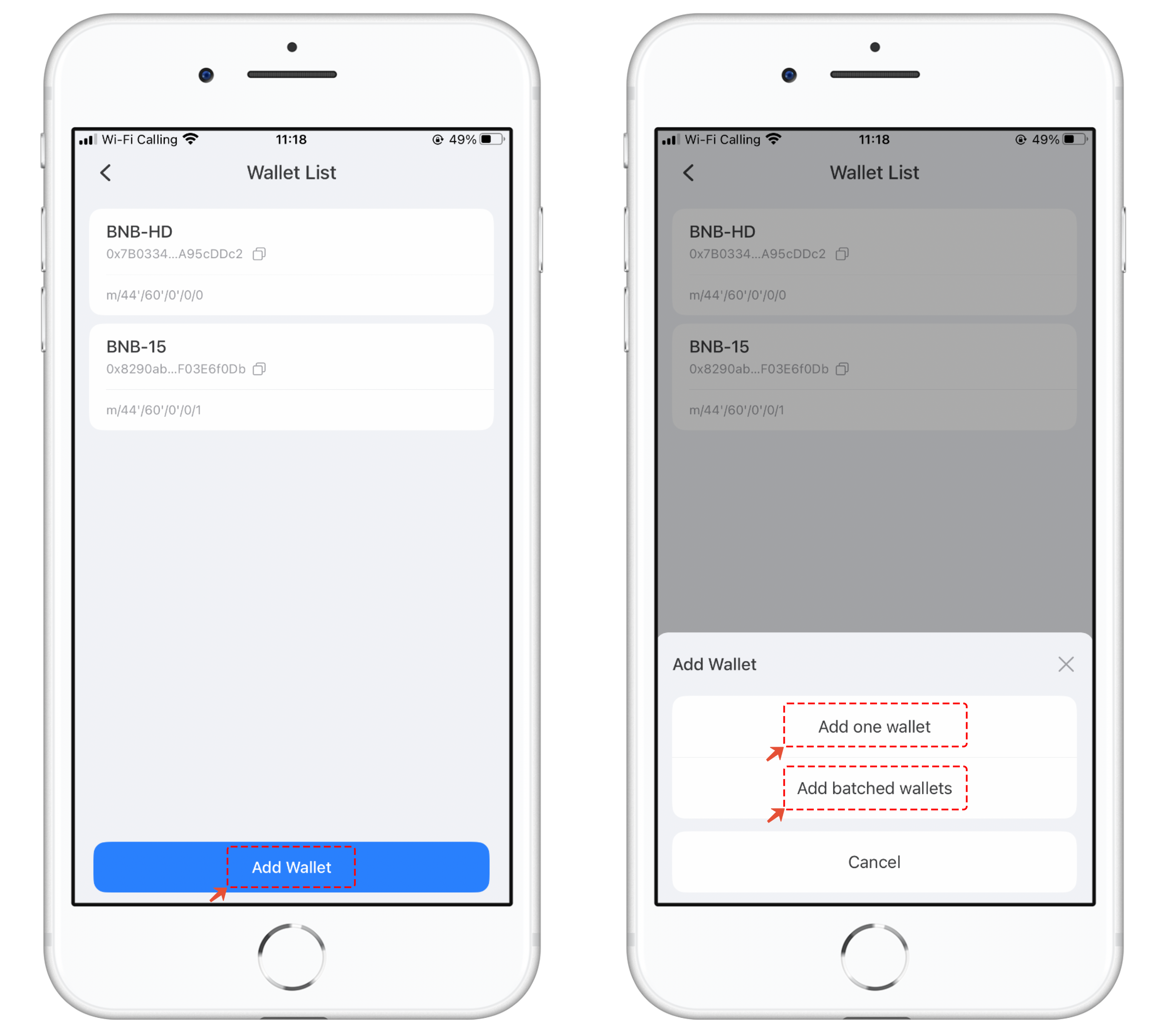
2. In the wallet list, you can view the historical records of previously created sub-wallets. Click on "Add Wallet" and select "Add batched Wallets"
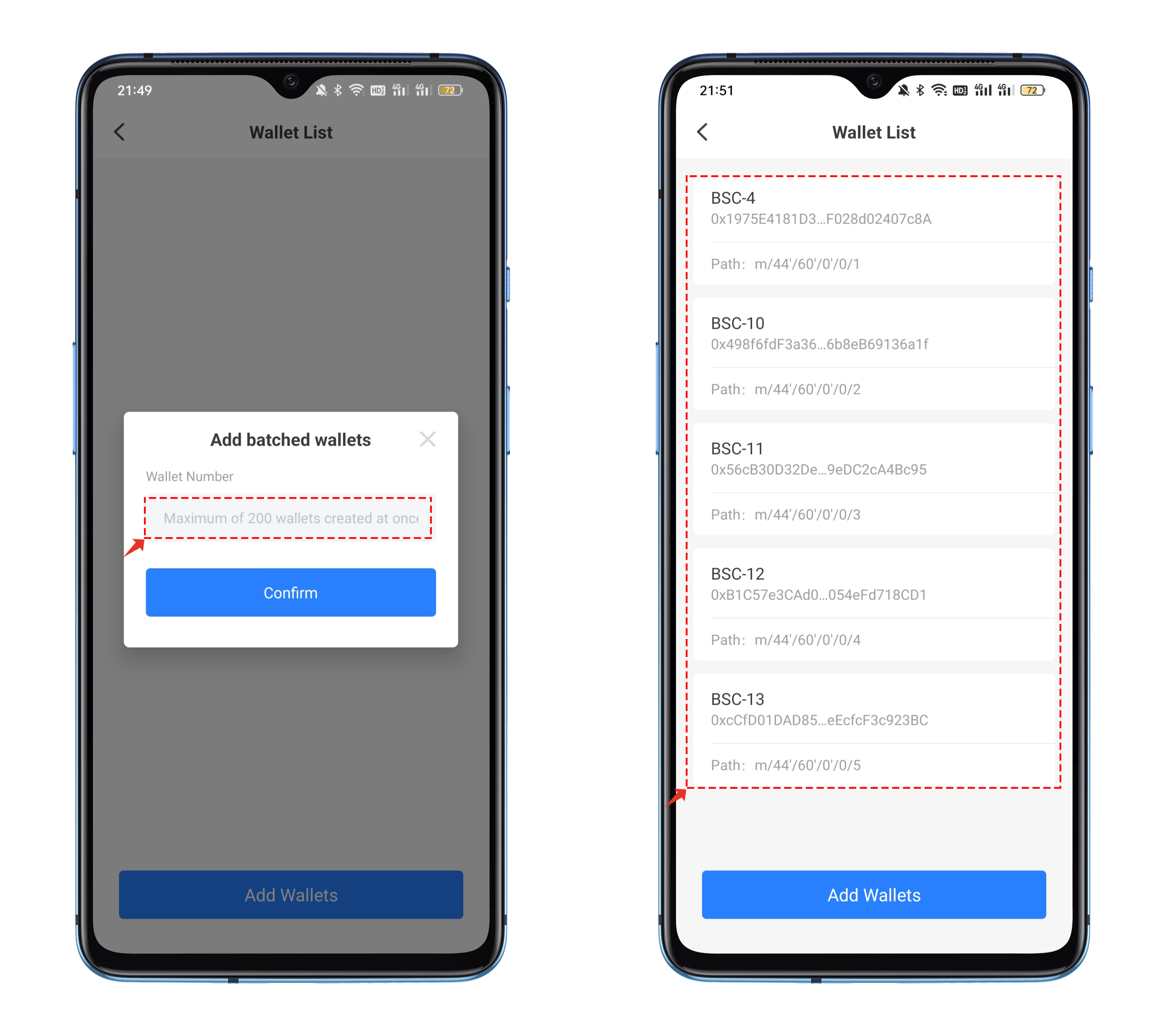
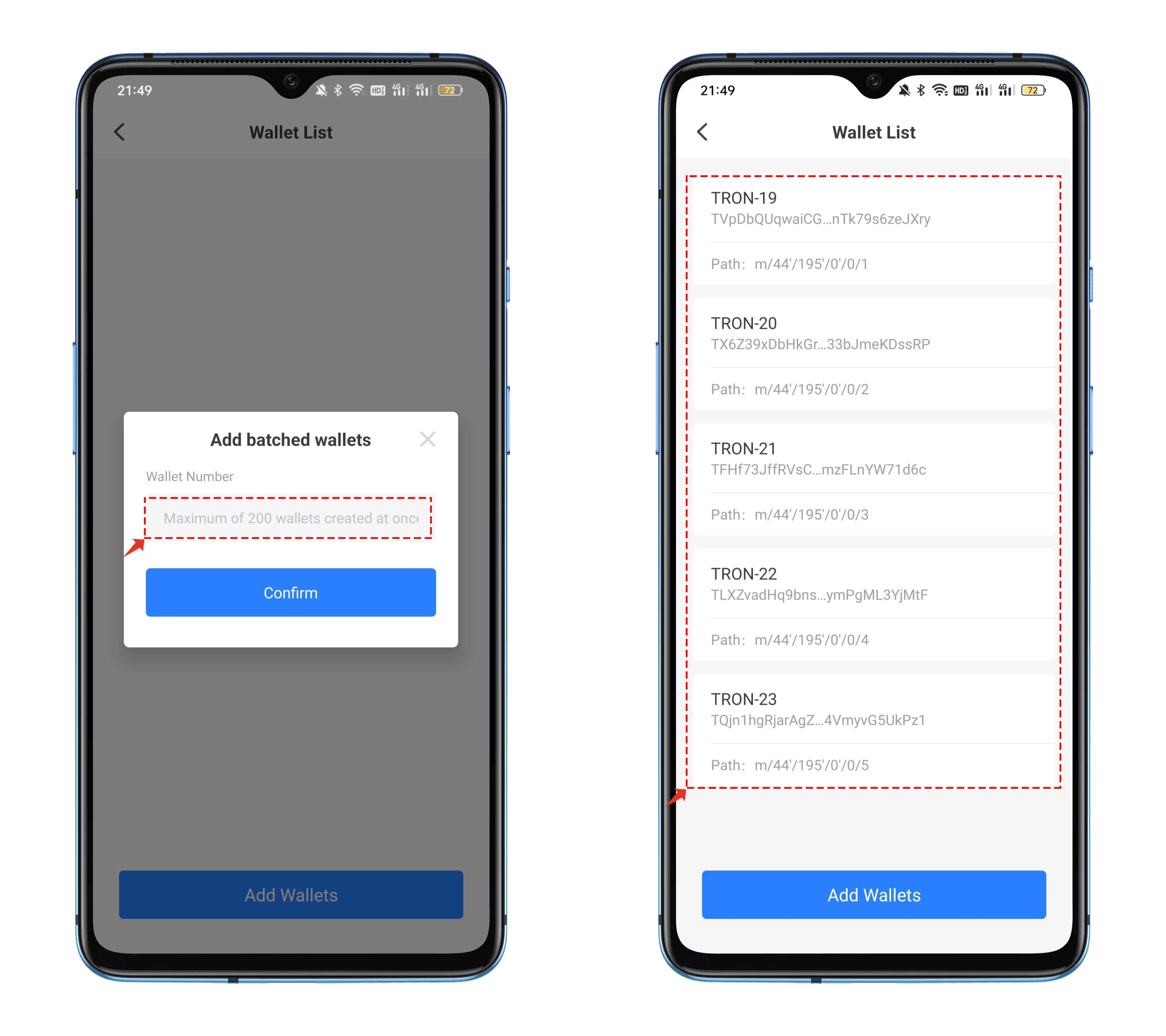
3. When adding wallets in bulk, you can add up to 200 addresses at a time and can do so in multiple batches. Simply click "Confirm" and enter your password to create them successfully. The creation records can be viewed in the wallet list.
### Sub-wallet creation tutorial (Tron):
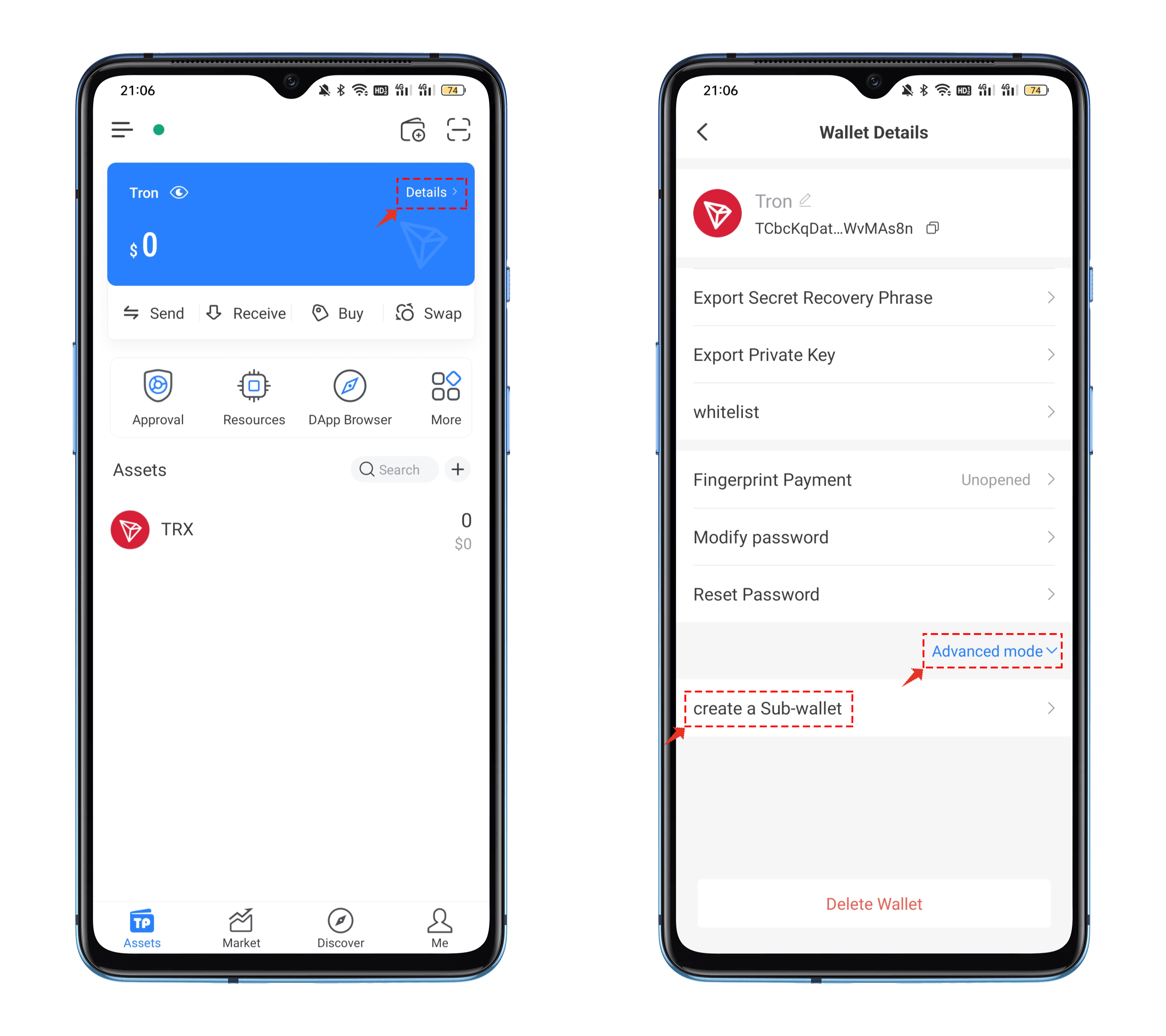
1. Open the TRON wallet in TokenPocket, click on the upper right corner of the blue card "Details," and on the wallet details page, click on "Advanced Mode" and select "Create Sub Wallet."
2. In the wallet list, you can view the historical records of previously created sub-wallets. Click on "Add Wallet" and select "Add batched Wallets"
3. When adding wallets in bulk, you can add up to 200 addresses at a time and can do so in multiple batches. Simply click "Confirm" and enter your password to create them successfully. The creation records can be viewed in the wallet list.
### Sub-wallet creation tutorial (HD Wallet):
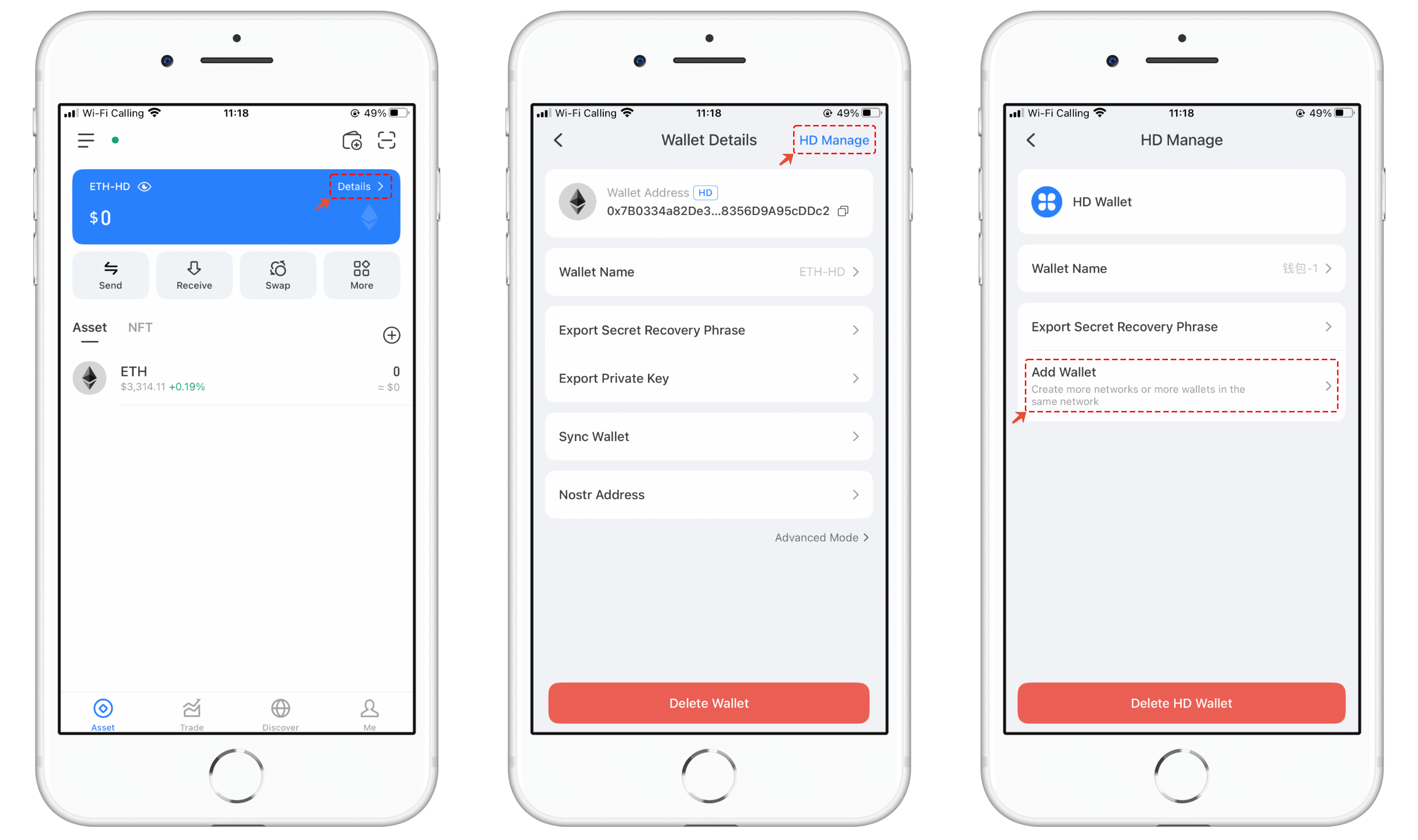
1. Open TokenPocket, click on the 'Details' in the blue card, and then click the small icon in the upper right corner of the wallet details to enter the HD wallet management interface. In this interface, click on 'Advanced Mode' and select 'Create a Sub-wallet'.
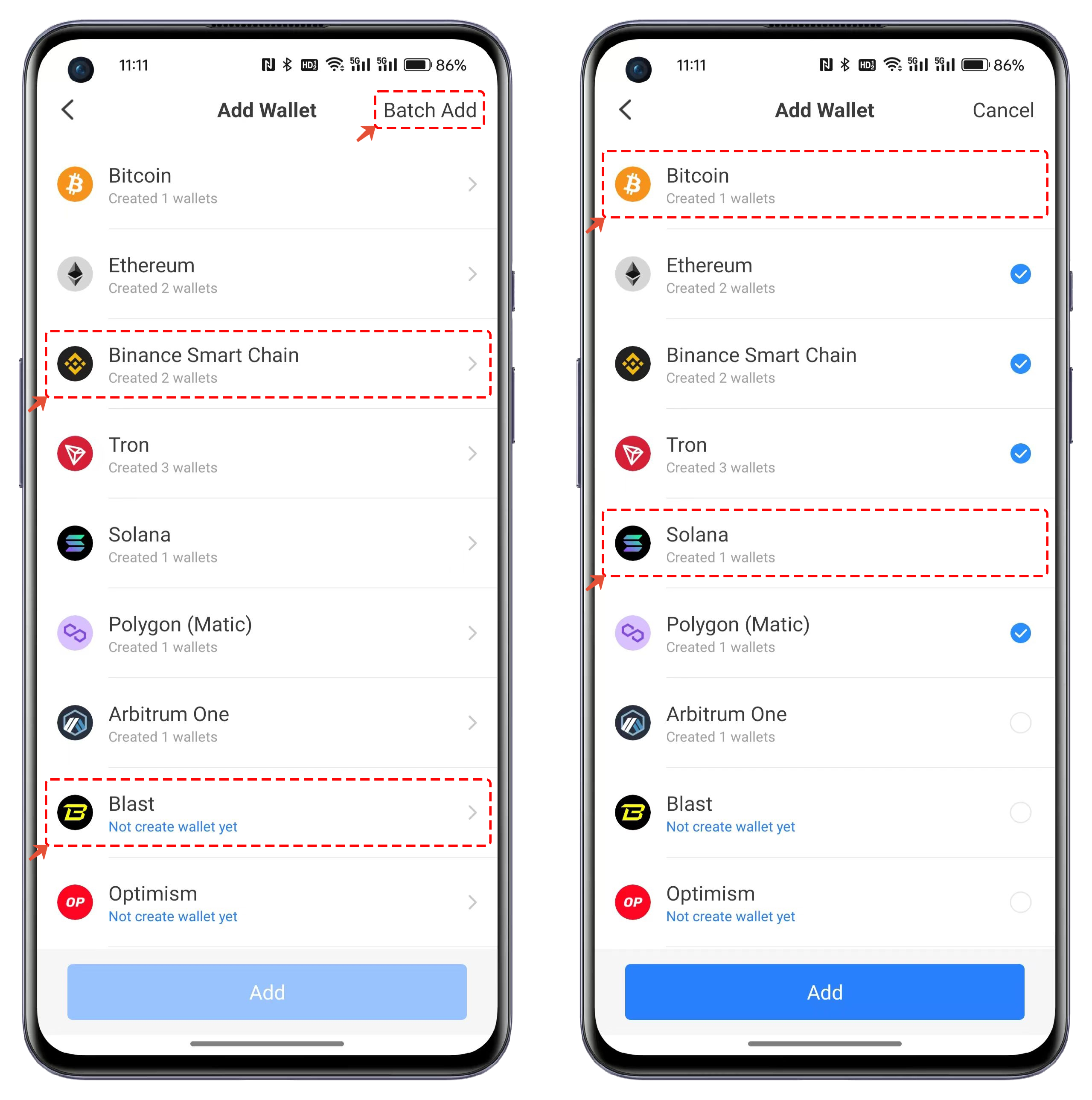
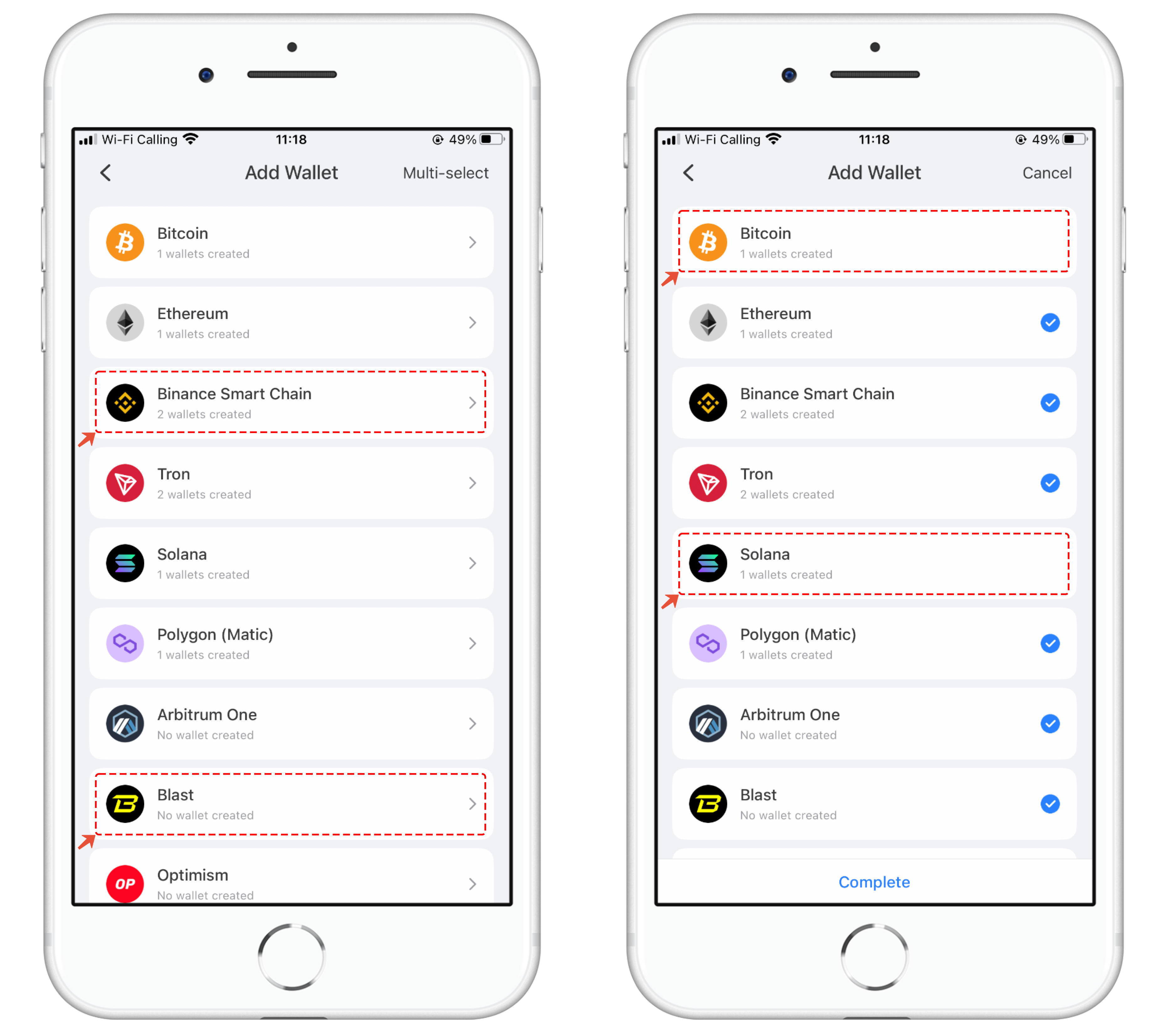
2. In the 'Add Wallet' section, you can support HD wallets for blockchains that have not been generated, such as the Arbitrum One blockchain shown in the image below. You can also add sub-wallets to wallets that are already supported. The multi-select feature is effective for EVM chains, allowing you to select multiple blockchains for which you want to add sub-wallets. However, a single operation can only add one sub-wallet for the corresponding blockchain.
3. Select any blockchain that supports sub-wallets. In the wallet list, the creation methods support both single and bulk options, and the operation is consistent with the creation tutorial provided above.
## iOS client creation tutorial:
1. Open TokenPocket, click on the 'Details' in the blue card, then in the wallet details interface, click on 'Advanced Mode' and select the 'Add Wallet"
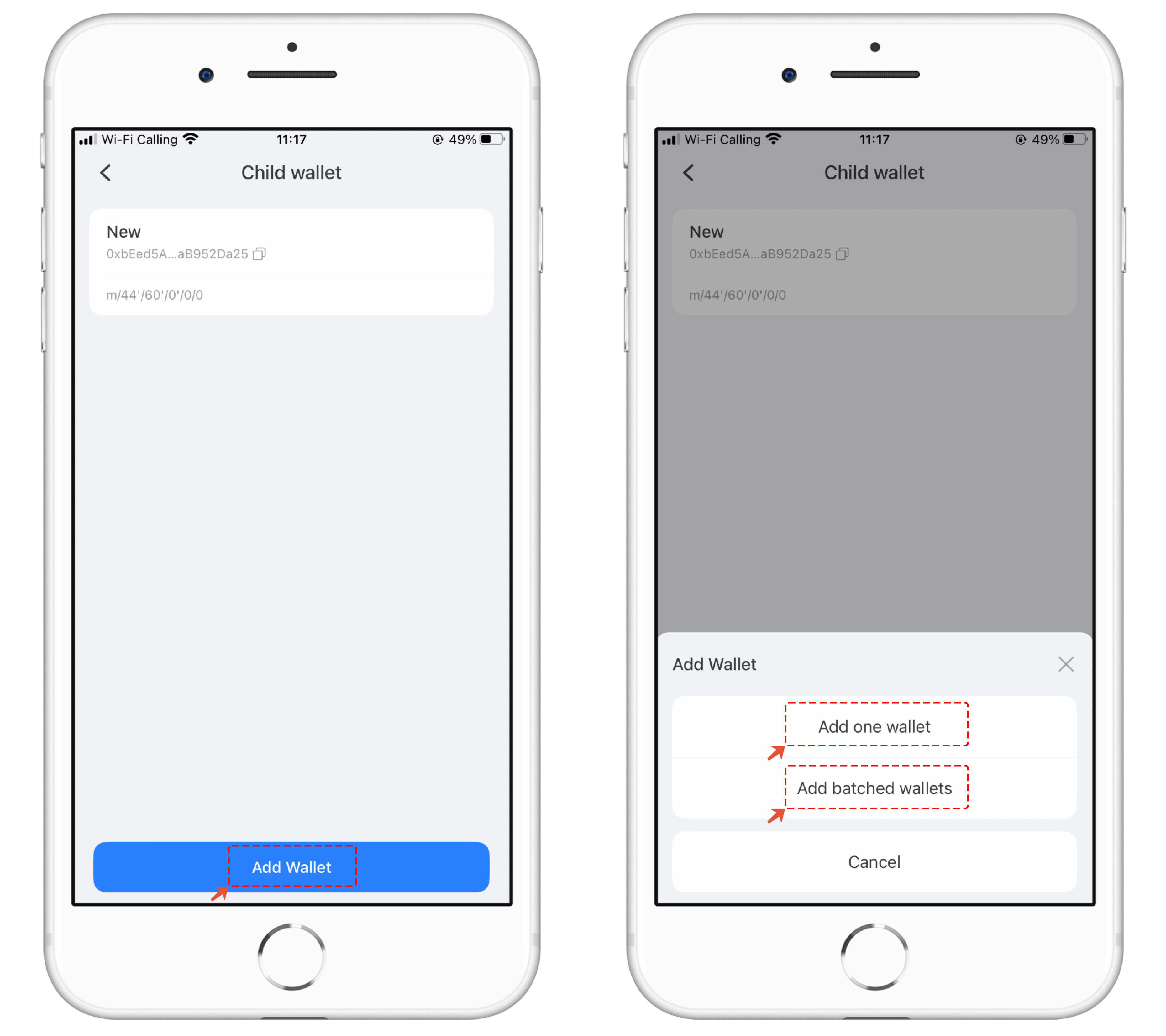
2. In the sub-wallet list, you can view the history of previously created records. To add more sub-wallets, click on 'Add Wallet.' The addition methods are divided into two options: 'Add One Wallet' and 'Add batched Wallets.'
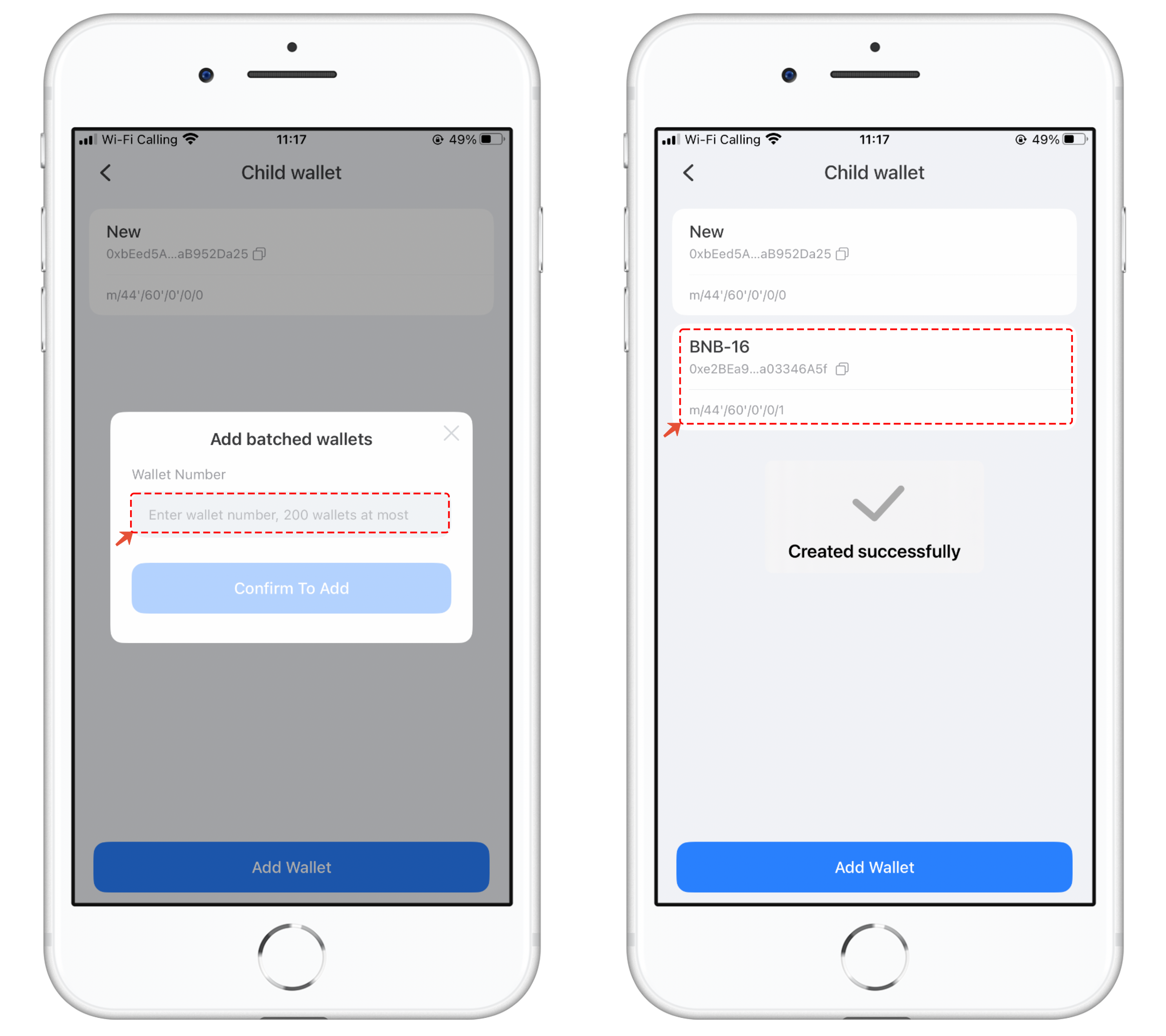
3. Set the quantity you want to add, click 'Confirm To Add,' and after entering your password, the creation will be completed. In the Child Wallet, you can see the address number and path of the created sub-wallets (the last digit of the path indicates the order in which the sub-wallets were created).
### Creating Sub-wallets in HD Wallet on iOS:
1. Open the HD wallet, click on 'Details' in the blue card, then click on 'HD Manage' and select 'Add Wallet.'
2. In the 'Add Wallet' section, you can support HD wallets for blockchains that have not been generated, such as the Arbitrum One blockchain shown in the image below. You can also add sub-wallets to wallets that are already supported. The multi-select feature is effective for EVM chains, allowing you to select multiple blockchains for which you want to add sub-wallets. However, a single operation can only add one sub-wallet for the corresponding blockchain.
3. Select any blockchain that supports sub-wallets. In the wallet list, the creation methods support both single and bulk options, and the operation is consistent with the creation tutorial provided above.
### How to Import and Use Sub-wallets:
#### There are three methods for importing and using sub-wallets:
1. **Private Key Import**: If you have backed up the private key of the sub-wallet, you can choose the private key import method in the 'Import Wallet' section.
2. **Recreation**: Since the order and address of the created sub-wallets are fixed, you can use the sub-wallets by recreating them.
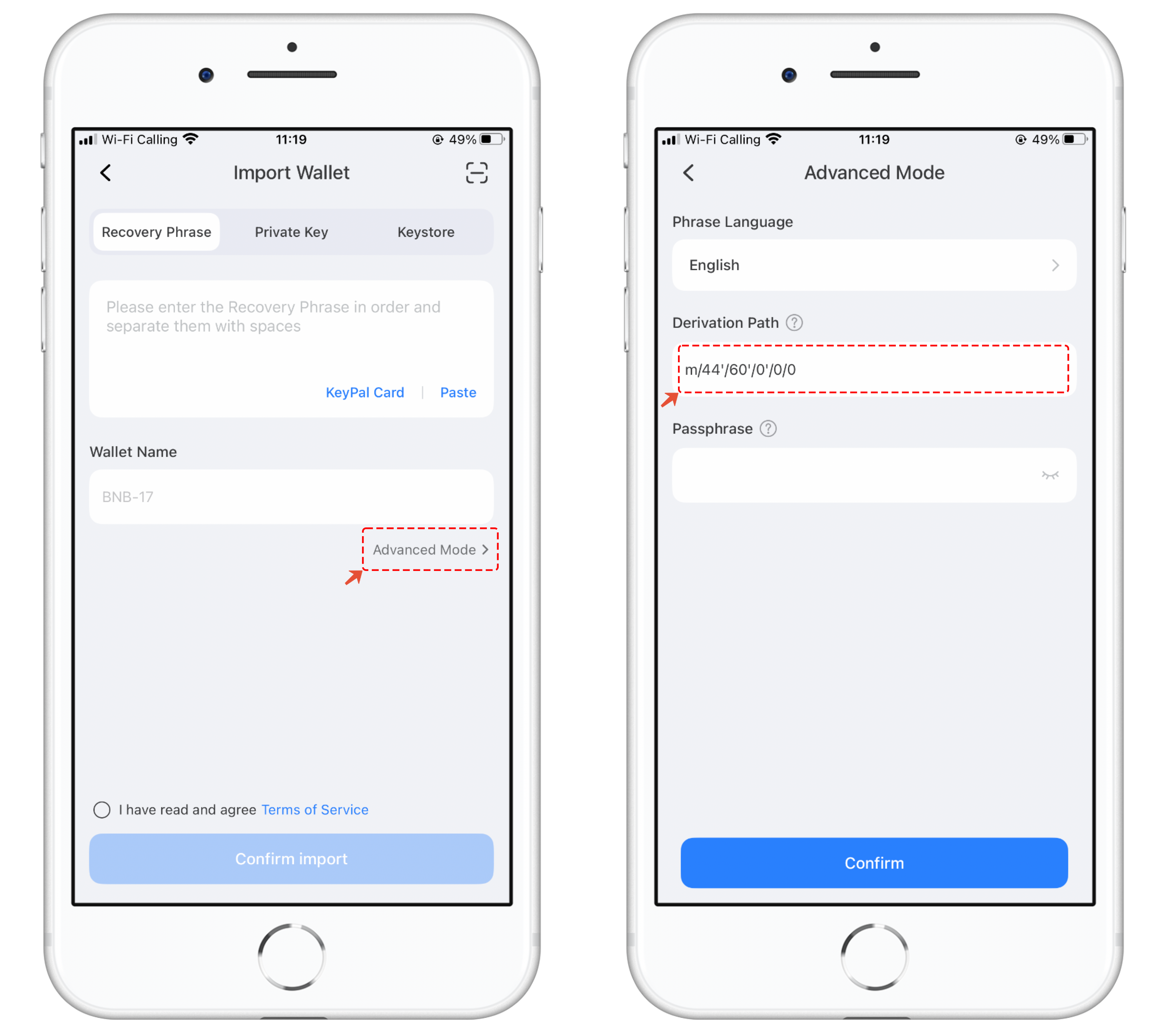
3. **Path Import**: During the wallet import process, you can use the mnemonic phrase import method. In the import interface, click on 'Advanced Mode' and set the last digit of the wallet path to match the sub-wallet's number for direct import and use of the sub-wallet. (If you forget the path, you can refer to the second method to regenerate it.)
The method for creating sub-wallets on other blockchains is the same; you can follow this tutorial to execute the creation and usage.