# Linea Use Guide

### <mark style="color:orange;">**How to create a Linea wallet in TokenPocket?**</mark> <a href="#how-to-create-an-etc-wallet-in-tokenpocket" id="how-to-create-an-etc-wallet-in-tokenpocket"></a>

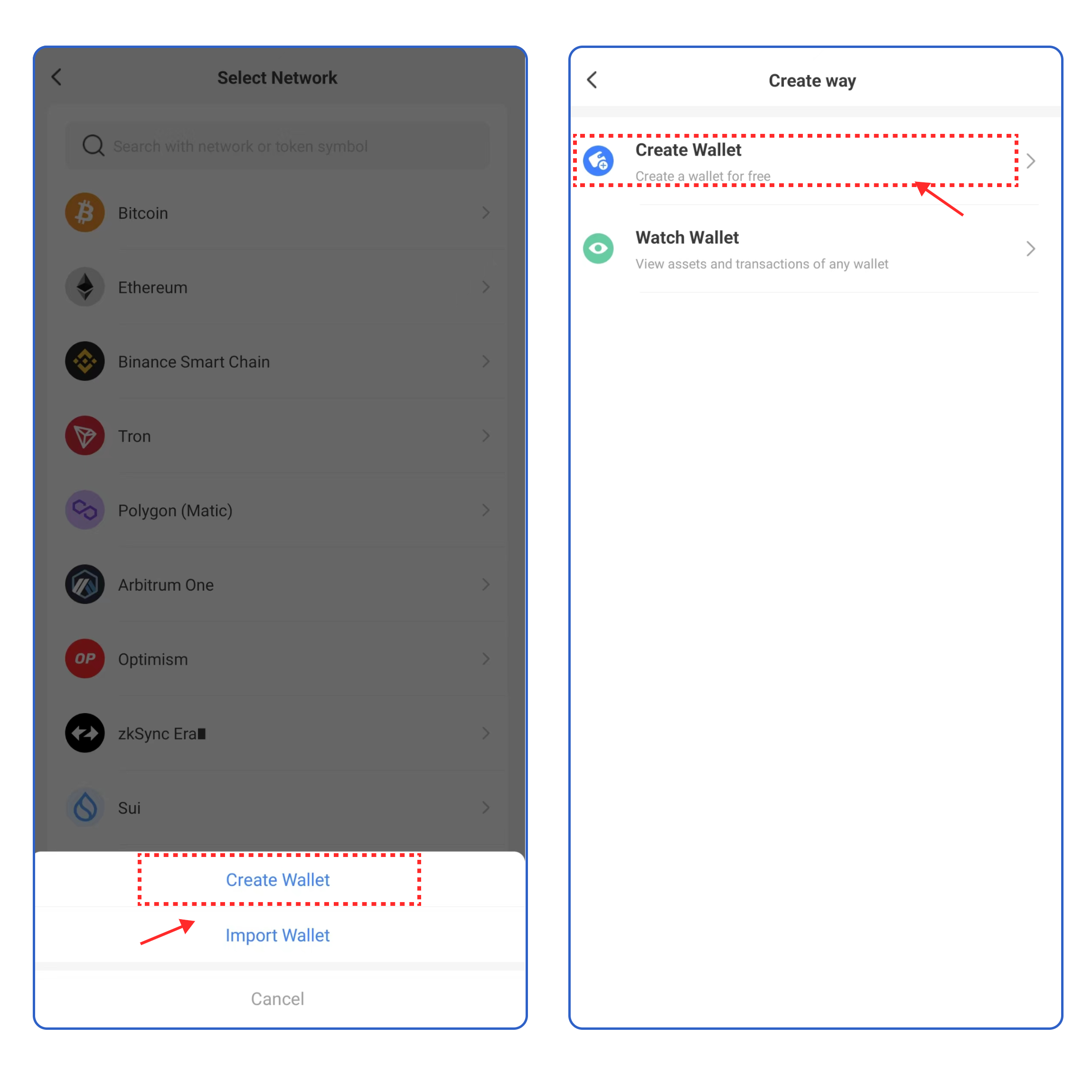
1. Open TokenPocket APP, click ![](https://2634619309-files.gitbook.io/~/files/v0/b/gitbook-x-prod.appspot.com/o/spaces%2F3qtItoZih7cEdFc6kPNk%2Fuploads%2F2fpBNLM9pxI0cPnfjCxU%2Fimage.png?alt=media\&token=84b2c760-b6a7-429c-9034-39a311ce5a3e) on the upper right corner, and select **Linea**;

<figure><img src="https://2634619309-files.gitbook.io/~/files/v0/b/gitbook-x-prod.appspot.com/o/spaces%2F3qtItoZih7cEdFc6kPNk%2Fuploads%2F1qKr4PAMoB7bxLLLPLod%2F1%20en.png?alt=media&#x26;token=6f00458b-69af-4f1e-8f9f-970038e07ac3" alt=""><figcaption></figcaption></figure>

2\. Click **\[Create Wallet]**  and click **\[Create ]** again;

<figure><img src="https://2634619309-files.gitbook.io/~/files/v0/b/gitbook-x-prod.appspot.com/o/spaces%2F3qtItoZih7cEdFc6kPNk%2Fuploads%2FUeJlfDfmbCfRUf0IDKs3%2Fimage.png?alt=media&#x26;token=d8286c30-3e6d-45b5-b6c8-7e3b173664b0" alt=""><figcaption></figcaption></figure>

3\. Set the wallet name and password, click the User Agreement, and click **\[Create Wallet].** Watch and learn the video content, click **\[I got it].**

<figure><img src="https://2634619309-files.gitbook.io/~/files/v0/b/gitbook-x-prod.appspot.com/o/spaces%2F3qtItoZih7cEdFc6kPNk%2Fuploads%2F7Dojhbm9YpasIrmY8E3L%2F2%20en.png?alt=media&#x26;token=75f7396b-b20f-4174-9705-b96a90e26cb1" alt=""><figcaption></figcaption></figure>

4\.  Select the security tips, and click **\[Next Step]**. Back up the secret recovery phrase on the paper or on the [**KeyPal**](https://www.keypal.pro/en/), and store it in a safe place. Click **\[Completed backup, verify now]** .

<figure><img src="https://2634619309-files.gitbook.io/~/files/v0/b/gitbook-x-prod.appspot.com/o/spaces%2F3qtItoZih7cEdFc6kPNk%2Fuploads%2FZcy7wHG5UqbrTTuQZtsO%2Fimage.png?alt=media&#x26;token=0913472c-2d78-4c9f-8aa9-805fc06c5d5b" alt=""><figcaption></figcaption></figure>

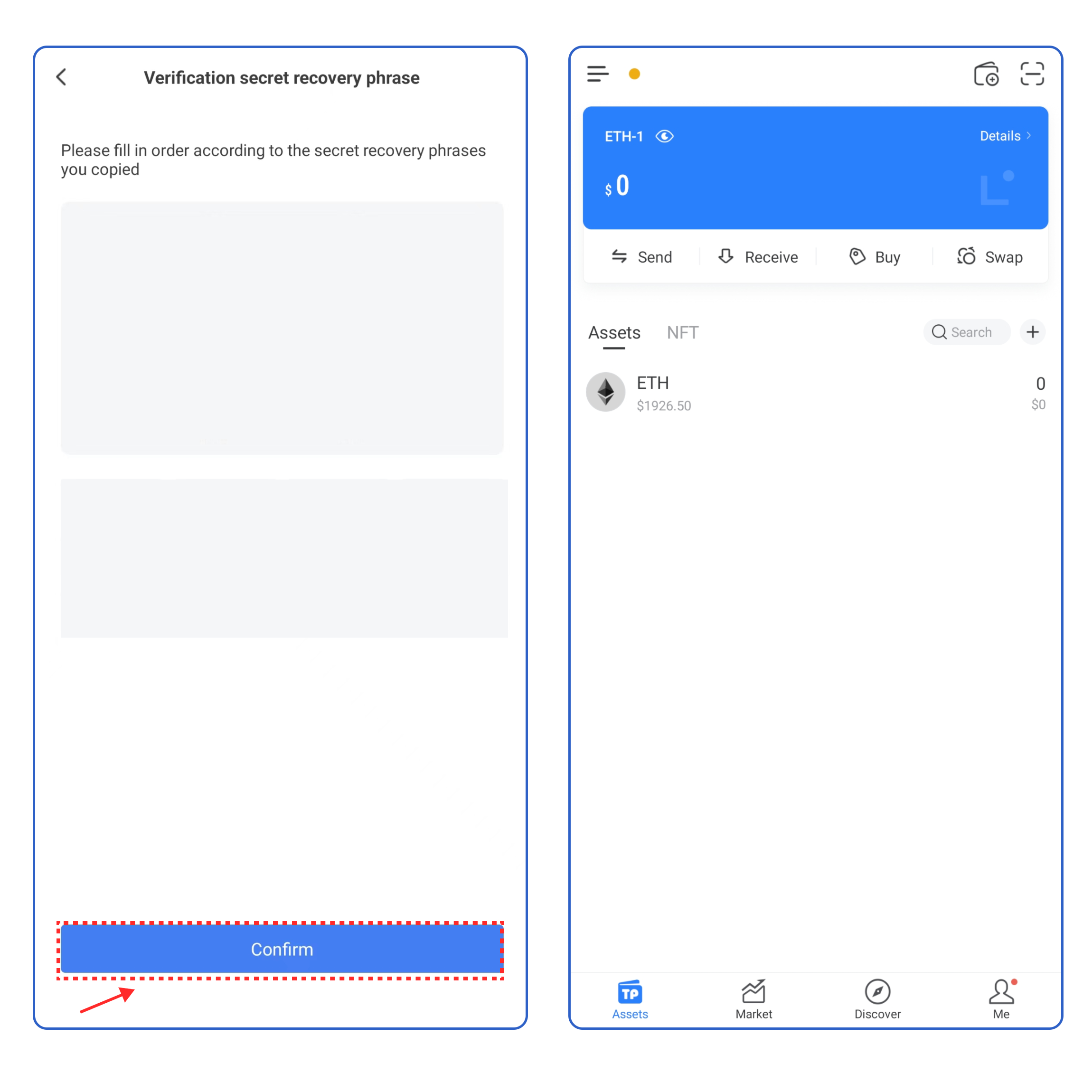
5\. Enter your secret recovery phrase, and click **\[Confirm].** At this point, you have successfully created a **Linea** wallet.

<mark style="color:red;">**Attention: Do not disclose the private key or secret recovery phrase to the third party!**</mark>

<figure><img src="https://2634619309-files.gitbook.io/~/files/v0/b/gitbook-x-prod.appspot.com/o/spaces%2F3qtItoZih7cEdFc6kPNk%2Fuploads%2FdfhN3jmm6FOIwg0UbALG%2F3%20en.png?alt=media&#x26;token=20c2bec2-9920-43ce-a776-ba86a09996e7" alt=""><figcaption></figcaption></figure>

### <mark style="color:orange;">**How to import a Linea wallet into TokenPocket?**</mark> <a href="#how-to-import-an-etc-wallet-into-tokenpocket" id="how-to-import-an-etc-wallet-into-tokenpocket"></a>

1. Open TokenPocket APP, click![](https://2634619309-files.gitbook.io/~/files/v0/b/gitbook-x-prod.appspot.com/o/spaces%2F3qtItoZih7cEdFc6kPNk%2Fuploads%2FM6NxIYonnSmxBrZ3Zo04%2Fimage.png?alt=media\&token=907b44a1-b52e-4810-9c75-04f661cc296c) on the upper right corner, and select **Linea;**

<figure><img src="https://2634619309-files.gitbook.io/~/files/v0/b/gitbook-x-prod.appspot.com/o/spaces%2F3qtItoZih7cEdFc6kPNk%2Fuploads%2F1qKr4PAMoB7bxLLLPLod%2F1%20en.png?alt=media&#x26;token=6f00458b-69af-4f1e-8f9f-970038e07ac3" alt=""><figcaption></figcaption></figure>

2\. Click **\[Import Wallet]**, and select the way you want to import your wallet.

<figure><img src="https://2634619309-files.gitbook.io/~/files/v0/b/gitbook-x-prod.appspot.com/o/spaces%2F3qtItoZih7cEdFc6kPNk%2Fuploads%2FAA4TbzB7sWihEq3WBSiD%2Fimage.png?alt=media&#x26;token=f1000509-fe5d-4e5c-a824-8b5e6560be6e" alt=""><figcaption></figcaption></figure>

3\. Take **\[Recovery Phrase import]** as an example, enter your secret recovery phrase, wallet name, and password, click the User Agreement, and click **\[Import Wallet]**. At this point, you have successfully imported a **Linea** wallet.​​&#x20;

<figure><img src="https://2634619309-files.gitbook.io/~/files/v0/b/gitbook-x-prod.appspot.com/o/spaces%2F3qtItoZih7cEdFc6kPNk%2Fuploads%2Fsxbfv7zSx6RdTq9KsDR0%2F4%20en.png?alt=media&#x26;token=c8f0fab7-35af-45db-8dd0-0b5f863ea9ec" alt=""><figcaption></figcaption></figure>