> For the complete documentation index, see [llms.txt](https://help.tpwallet.io/en/llms.txt). Markdown versions of documentation pages are available by appending `.md` to page URLs; this page is available as [Markdown](https://help.tpwallet.io/en/wallet-operation/how-to-create-a-wallet/unichain.md).
# How to Create and Import Unichain Wallet on TokenPocket? (Mobile & Chrome Wallet Guide)
Learn how to create and import Unichain wallets on TokenPocket, whether using the mobile app (iOS & Android) or the chrome wallet. This guide provides detailed steps to help you manage your Unichain.
Mobile:
Chrome:
## **How to create a Unichain wallet in TokenPocket?**
1. Open the TokenPocket APP, click  on the upper right corner, click the search bar, and enter Unichain**;**
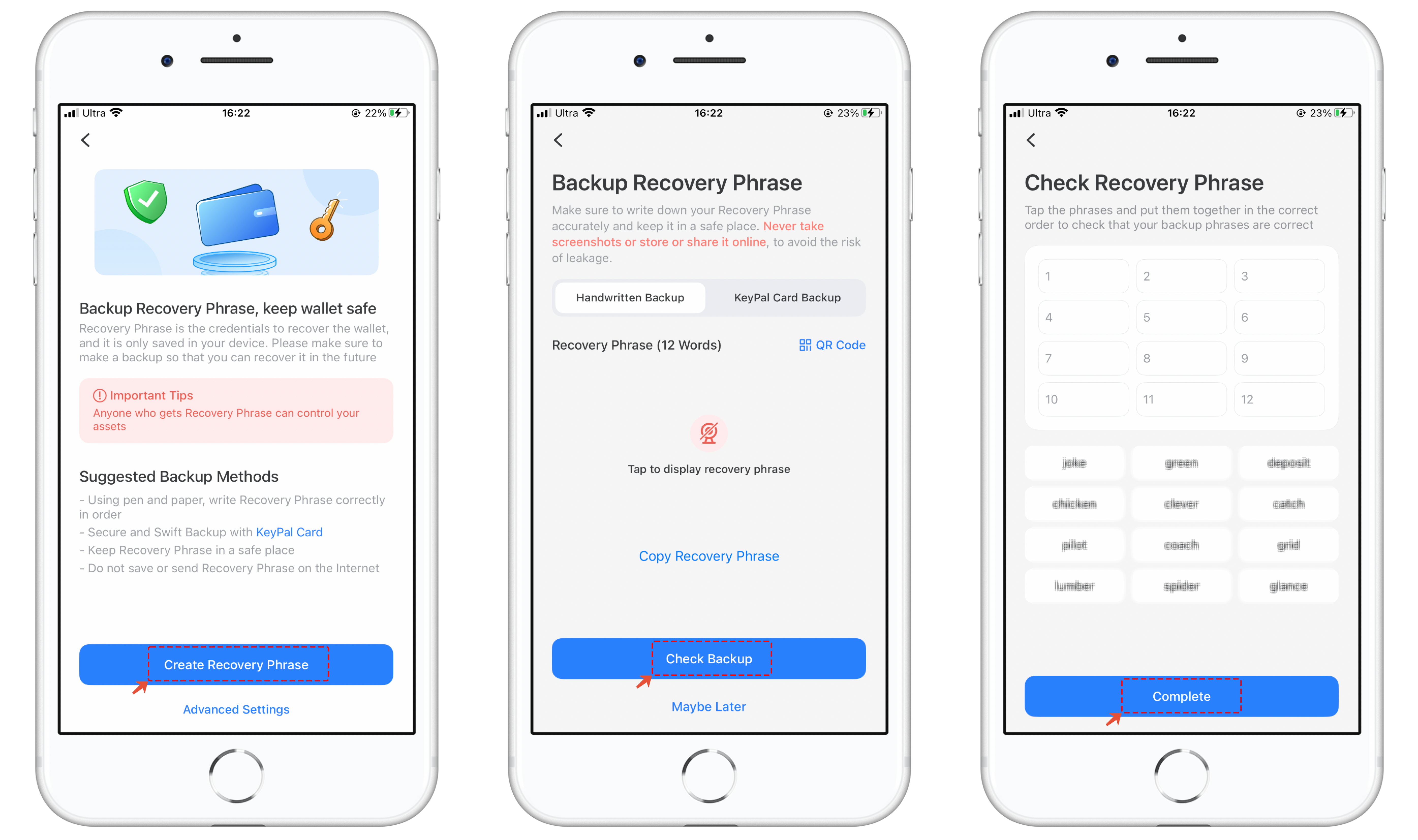
2. Android Version. Click **\[**Unichain**]** and click **\[**Unichain**]** after the 1st step, then set your wallet name, password, and so on. Follow the steps below.
>iOS Version. Click **\[Create Wallet]**, then set your wallet name.
3. Back up the secret recovery phrase on the paper, and store it in a safe place. Click **\[Completed backup]** and verify your secret recovery phrase.
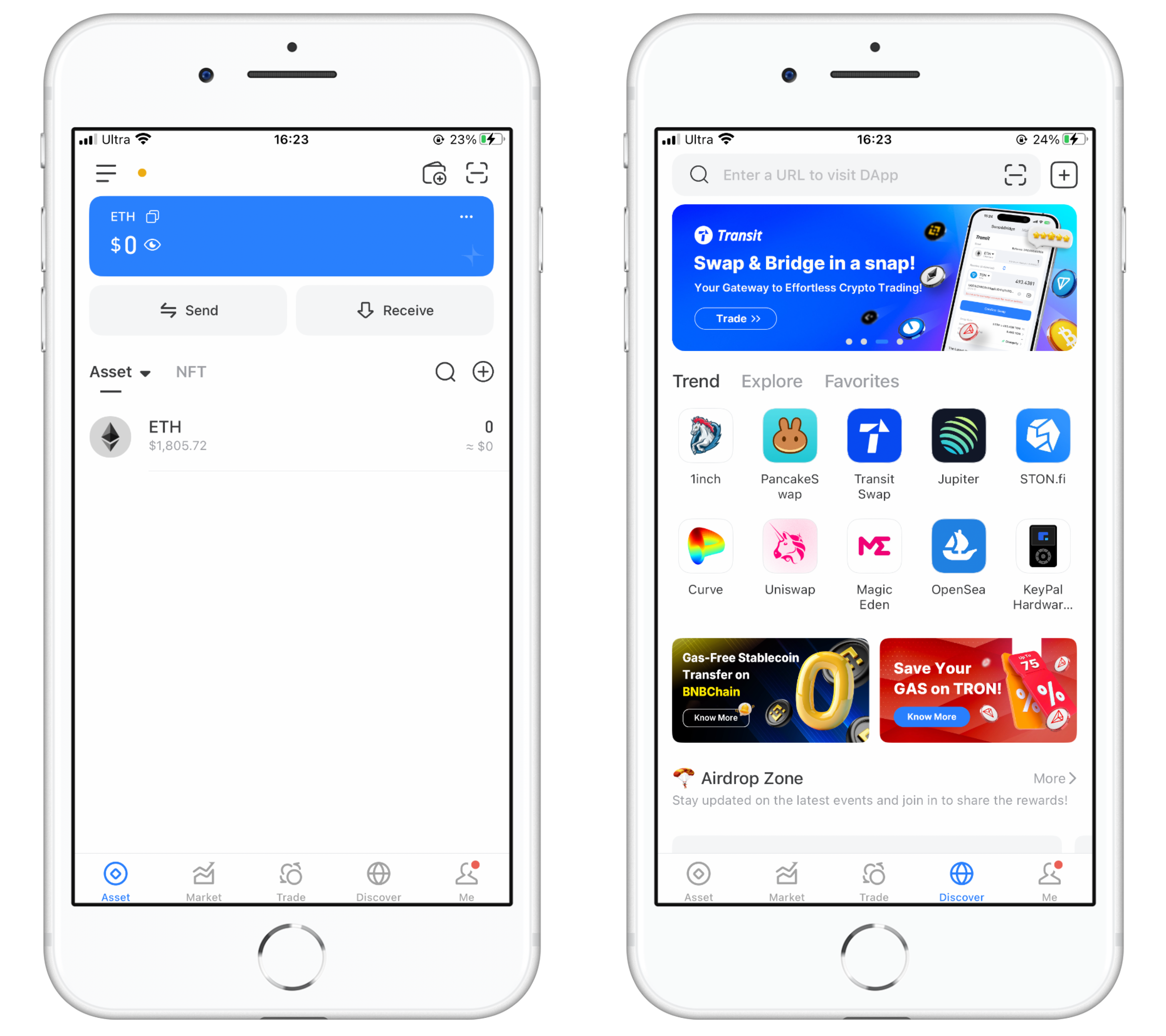
4. At this point, you have successfully created a Unichain wallet. You can store Unichain assets, swap\&bridge, and discover the Unichain ecosystem on TokenPocket from now on!
**Attention: Do not disclose the private key or secret recovery phrase to the third party!**
## **How to import a Unichain wallet in TokenPocket?**
1. Open the TokenPocket APP, click  on the upper right corner, click the search bar, and enter Unichain;
2\. Click **【Import Wallet】**, select **\[Recovery Phrase]**
3. Enter your secret recovery phrase, set your wallet name, and click confirm. At this point, you have successfully imported a Unichain wallet.
## Chrome Extension Wallet Tutorial
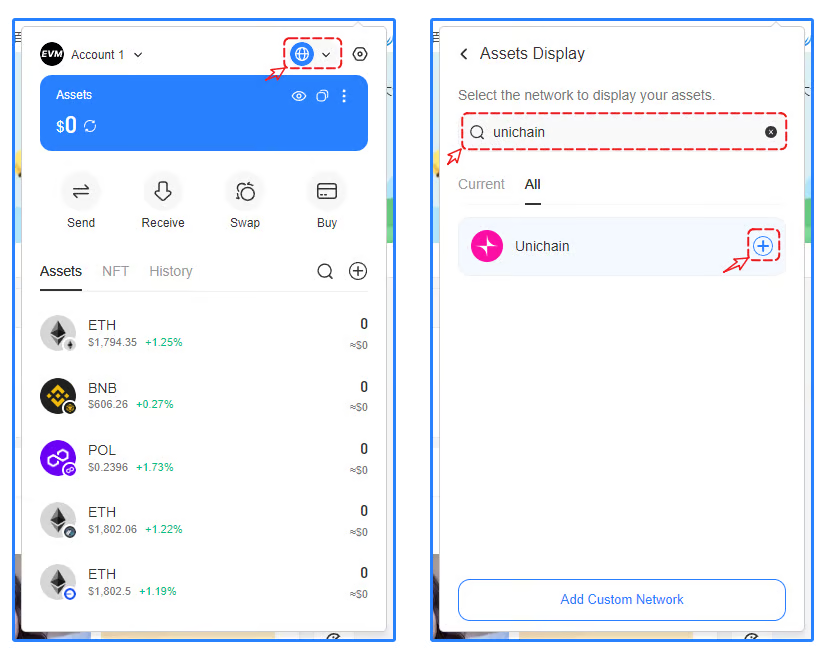
Open the [TokenPocket extension wallet,](https://extension.tokenpocket.pro/) click on the top button, choose the Unichain public chain in the HOT menu, and you can directly get your Unichain wallet address.